Posts
-
Get Kubernetes Pod secrets with curl and the Service Account token
Here’s a simple explainer for how to access secrets a Kubernetes Pod is allowed to access with its default service account.
-
kubectl apply Vs kubectl create
What’s the difference between
kubectl applyandkubectl create? -
CKA Exam Command Shortcuts
Run these commands in your shell to make them available (or put in .bashrc)…
-
kubernetes.io documentation - Useful links for the CKA
For the CKA Exam it’s useful to know the documentation well, and to be able to navigate quickly to appropriate code snippets, commands and the like. I present here a short list of links that may be useful, in the exam, for specific question categories.
-
Simple Kubernetes Network Policy to open up a pod port
Below shows a very simple Kubernetes Network Policy object. This simply opens up port 80 to the outside in a locked-down environment. The key tags to understand are run, which should be a label on the pod you wish to match, and the ports block under ingress. This should be a list specifiying the ports you wish to open.
-
Get RDS Instance Type RAM in Terraform
For a monitoring project I’m currently working on I need to get the amount of RAM an RDS Instance has. Unfortunately the aws_db_instance resource doesn’t expose this type of information to us. Terraform does however give us an external datasource that we can take advantage of to provide the data.
-
Why doesn't SELinux log a denied message?
If you’re wondering why SELinux is not printing a “denied” message in /var/log/audit/audit.log it’s probably because somebody wanted to hide it! Yes, it’s possible to prevent an SELinux module from logging a denied message. Disable this behaviour by executing the following command:
-
Terraform will damage your Computer
Today I experienced the following error on my Intel MacBook Pro when attempting to run Terraform…
-
Generate BATS Unit Tests with ChatGPT
Of course everyone has now heard about ChatGPT. I’ve seen a few posts on LinkedIn where people have used it to generate code. I thought I’d have a quick go at seeing if ChatGPT would generate useful units tests. So I gave it the following bash function…
-
Install PyLint on Python 2.7
When installing pylint with Python 2.7 you may encounter the following problem…
-
log4j vulnerability scanner
WARNING: As with any tool you download from the Internet…
- Check the source code.
- Don’t run as root or other high-privileged user.
- Run only in a test system and never in prod.
- Keep out of reach of Children.
-
FizzBuzz with Python
Why? Simply because I haven’t attempted the FizzBuzz problem for some time!
-
Wordpress to GitHub Pages Migration
I’ve just completed the migration of a Wordpress blog to GitHub pages using the Ruby based Jekyll blogging engine. The following resource was very useful…
-
Welcome to Jekyll!
You’ll find this post in your
_postsdirectory. Go ahead and edit it and re-build the site to see your changes. You can rebuild the site in many different ways, but the most common way is to runjekyll serve, which launches a web server and auto-regenerates your site when a file is updated. -
How to tell if you're in a docker container
Sometimes you need to know if you’re inside a docker container from the shell. Here’s how you can do that..
-
Disable line-length Yamllint rule in Molecule
Just a quick post on how to disable the yamllint line-length rule in molecule tests (I’m always forgetting).
-
Ignore PEP rules with Molecule / Testinfra / flake8
I’m always forgetting how to configure my molecule.yml file to ignore certain PEP8 rules. Here’s a quick example showing how to ignore the E501 Line too long rule:
-
Using Ansible Modules with Testinfra
I’ve been looking at improving the quality of the testing I do with Molecule and Testinfra. Simple checks like service.is_running or package.is_installed have their place but they’re pretty limited as to what assurances they provide us. Part of the issue I have is that some tests need a fair bit of setup to make them worthwhile. Attempting to tackle that with raw Python might be a little bit tricky. A better approach is to use the Ansible module available within TestInfra. We can call an ansible module with the following Python code:
-
Using Bash brace expansion to generate multiple files
I needed to generate a whole bunch of files, with identical content, for a recent task. You might automatically think of using a loop for such a task but there’s a much simpler method using brace expansion in the shell.
-
Linux Server checks with Goss
I’ve been playing a little with goss recently. Goss is similar to TestInfra in that it allows you to write tests to validate your infrastructure. Goss uses yaml to specify the expected state rather than python code unittests like Testinfra. It also has a couple of other interesting features making it stand out from the crowd…
-
Wait for processes to end with Ansible
I’ve been doing a lot in stuff in ansible recently where I needed to fire up, kill and relaunch a bunch of processes. I wanted to find a quick and reliable way of managing this…
-
Broken sudo?
If you somehow add a dodgy sudo rule you might end up breaking it completely…
-
Linux: Reclaim disk space used by "deleted" files
I had a misbehaving application consuming a large amount of space in /tmp. The files were not visible in the /tmp volume itself but lsof allowed me to identify them.
-
ansible-vault unexpected exception on Ubuntu
When attempting to edit an ansible-vault file…
-
"could not open session" error in docker container
I received the following error, attempting to cat a log file, inside a docker contain when troubleshooting another issue…
-
Ansible: stop / start services on random hosts
In the coming weeks I’m performing some testing of a new application on a Cassandra cluster. To add a little randomness into some of the tests I thought it would be interesting to give the Cassandra service a little kick. I created a simple Ansible playbook this afternoon that does this. A simple Chaos Monkey if you like. Here’s the basic flow of the playbook…
-
Use restview to to make the Ansible rst documentation browsable
The ansible-doc package not only installs the command line tool but also some quite detailed Ansible documentation in rst format. It would be nice if it was browsable in a html format. Here’s how that can happen (Redhat/CentOS)
-
Create a space-separated list of play_hosts in Ansible
Sometimes I need a list of hosts as a string when working with Ansible. Pacemaker clustering is one example. Here’s a snippet of Ansible that does this..
-
Offset cron jobs with Ansible
Sometimes I want to run the same cronjob on a few hosts but I might want to offset them slightly if I’m accessing any shared resources. Here’s an easy way to do that, for a small number of hosts, using Ansible…
-
ssh-copy-id automation with a list of hosts
Here’s another version of my ssh-copy-id script this time using a text file containing a list of hosts. The hosts file should contain a single host per line.
-
Creating a Vagrant, Virtualbox & Ansible environment in the Windows Linux Subsystem
I’ve just been given a new Windows corporate laptop, with a huge amount of RAM (64GB), a large number of cores, and I wanted to start using this as my main development virtualisation platform. I do a lot of stuff with Vagrant, Ansible and VirtualBox and Windows hasn’t always been a welcome home for this setup. A more welcoming experience can be received through the Windows Linux Subsystem (WLSS) and is a big improvement over Cygwin. The instructions here used Debian 9.5 but should work on many other Linux distributions with minor modifications (i.e. package manager).
-
Vagrant: Create a series of VMs from a hostname array
I couldn’t find any examples of creating VMs from a array of strings online so sat down to work something out myself. Here’s how you do it…
-
Automate ssh-copy-id with numbered hosts
Here’s a script I use to automate ssh-copy-id when I need to add a series of hosts using a incremental node number. For example…
-
Ansible Playbook for Raspberry Pi Headphones Setup
I’ve created another Ansible Playbook for the Raspberry Pi to setup Headphones. It’s hosted over on my Github: PiHeadphones
-
Ansible: Find files newer than another
I needed to figure out a way of identifying files newer than another one in Ansible. Here's an outline of the solution I came up with.
First we need to create a bunch of directories and folder, with modified mtime values, that we can work with.
mkdir dir1; mkdir dir2; # Set the time on this dir to 3 days ago touch -t $(date -v-3d +'%Y%m%d%H%M') dir1; -
Ansible Raspberry Pi Projects
I’ve been playing around with a few RaspberryPi units and thought I’d share the Ansible projects I’ve created here. All these Ansible roles are intended for the Raspian OS.
-
Setting up a Ansible Module Test Environment
I’ve begun developing some Ansible modules and have created a Vagrant environment to help with testing. You can check it over over on my github. The environment has been created to test some MongoDB modules but can easily be repurposed to another use. It’s quite simple to get started;
-
Getting JConsole working over ssh with Cassandra
I’ve been working with Cassandra recently and wanted to start using JConsole. JConsole exposes some pretty useful information about Cassandra and the Java environment in which it runs. It operates over JMX and by default it only accepts connections from the localhost. Since we don’t run GUIs on our servers and we didn’t want to open up the JMX service to remote connections we needed to do a little wizardry to connect. First I thought of tunneling over ssh;
-
Jenkins test instance with Vagrant & Ansible
Here’s yet another project using Vagrant and Ansible. This time it’s for a Jenkins instance. To get started head on over to the Jenkins test instance githubpage. Consult the readme for setup instructions.
-
AWX installation using Vagrant and Ansible
Over on my github is a new project firing up a test instance of AWX. This is based on the following awx installation notes. The project is AWX-on-CentOS-7. You’ll need Virtualbox, Vagrant and Ansible installed to get this up and running. Getting started is simple;
-
Staged service restart with Ansible
I’ve been working on a small project to create a Cassandra Cluster for Development purposes. I’m using Vagrant and Ansible to deploy a 5-node Cassandra Cluster and node #5 would always fail to join the cluster.
-
MySQL 5.7: root password is not in mysqld.log
I came across this issue today when working on an ansibleplaybook with MySQL 5.7. Old habits die hard and I was still trying to use mysql_install_db to initialise my instance. It seems a few others have been doing the same. The effect of using mysql_install_db in more recent version of MySQL is that we end up not knowing the root password. This is now set to a random value rather than being blank/unset. Nothing is logged to the mysqld.log file unless you use mysqld –initialize first;
-
A Cassandra Cluster using Vagrant and Ansible
I’ve started a new project to create a Cassandra Cluster for development purposes. It’s available on my github and uses Vagrant, Ansible, and VirtualBox.
-
Using avahi / mDNS in a Vagrant project
I’m working on a project, with Vagrant and Ansible, to deploy a MongoDB Cluster. I needed name resolution to function between the VirtualBox VMs I was creating and didn’t want to hardcode anything in the hosts file. The solution I decided on uses avahi which essentially works like Apple Bonjour. As this solution has broader applications than just a MongoDB cluster I thought I’d share it here. The script is idempotent and is for Redhat/CentOS systems.
-
Cassandra 3 Node Cluster Setup Notes
Install on each node
-
A Clone of the STRING_SPLIT MSSQL 2016 Function
I have recently been developing some stuff using MSSQL 2016 and used the STRING_SPLIT function. This doesn’t exist in earlier versions and I discovered I would be required to deploy to 2008 or 2012. So here’s a my own version of the STRING_SPLIT function I have developed and tested on MSSQL 2008 (may also work on 2005).
-
A simple MariaDB deployment with Ansible
Here's a simple Ansible Playbook to create a basic MariaDB deployment.
The basic steps the playbook will attempt are:
- Install a few libraries
- Setup Repos
- Install MariaDB packages
- Install Percona software
- Create MariaDB directories
- Copy my.cnf to server (note this is a template file and not supplied here)
- Run mysql_install_db if needed
- Start MariaDB
- Set root password
- Delete anonymous users
- Create myapp database and user
Note: some steps will only execute if a root password has not been set. These are identifiable by the following line:
when: is_root_password_set.rc == 0
This is the playbook in full:
-
A dockerized mongod instance with authentication enabled
Here’s just a quick walkthrough showing how to create a dockerized instance of a standalone MongoDB instance.
-
Check MariaDB replication status inside Ansible
I needed a method to check replication status inside Ansible. The method I came up with uses the shell module...
-
my: a command-line tool for MariaDB Clusters
I’ve posted the code for my MariaDB Cluster command-line tool called my. It does a bunch of stuff but the main purpose is to allow you to easily monitor replication cluster-wide while working in the shell.
-
Notes from the field: CockroachDB Cluster Setup
Download the CockroachDB Binary
-
MongoDB: Making the most of a 2 Data-Centre Architecture
There’s a big initiative at my employers to improve the uptime of the services we provide. The goal is 100% uptime as perceived by the customer. There’s obviously a certain level of flexibility one could take in the interpretation of this. I choose to be as strict as I can about this to avoid any disappointments! I’ve decided to work on this in the context of our primary MongoDB Cluster. Here is a logical view of the current architecture, spread over two data centres;
-
MongoDB and the occasionally naughty query
It’s no secret that databases like uniqueness and high cardinality. Low cardinality columns do not make good candidates for indexes. A recent issue I had with MongoDB proved that NoSQL is no different in this regard.
-
A few Splunk queries for MongoDB logs
Here’s a few Splunk queries I’ve used to supply some data for a dashboard I used to manage a MongoDB Cluster.
-
Getting started with CockRoachDB
I've been quite interested in CockRoachDB as it claims to be "almost impossible to take down".
Here's a quick example for setting up a CockRoachDB cluster. This was done on a mac but should work with no, or minimal, modifications on *nix.
First, download and set the path PATH
wget https://binaries.cockroachdb.com/cockroach-latest.darwin-10.9-amd64.tgz
tar xvzf cockroach-latest.darwin-10.9-amd64.tgz
PATH="$PATH:/Users/rhys1/cockroach-latest.darwin-10.9-amd64";
export PATH;
Setup the cluster directories...
mkdir -p cockroach_cluster_tmp/node1;
mkdir -p cockroach_cluster_tmp/node2;
mkdir -p cockroach_cluster_tmp/node3;
mkdir -p cockroach_cluster_tmp/node4;
mkdir -p cockroach_cluster_tmp/node5;
cd cockroach_cluster_tmp
Fire up 5 CockRoachDB hosts...
cockroach start --background --cache=50M --store=./node1;
cockroach start --background --cache=50M --store=./node2 --port=26258 --http-port=8081 --join=localhost:26257;
cockroach start --background --cache=50M --store=./node3 --port=26259 --http-port=8082 --join=localhost:26257;
cockroach start --background --cache=50M --store=./node4 --port=26260 --http-port=8083 --join=localhost:26257;
cockroach start --background --cache=50M --store=./node5 --port=26261 --http-port=8084 --join=localhost:26257;
You should now be able to access the Cluster web-console at http://localhost:8084.
Command-line access is achieved with...
cockroach sql;
Those familiar with sql will be comfortable...
root@:26257/> CREATE DATABASE rhys;
root@:26257/> SHOW DATABASES;
root@:26257/> CREATE TABLE rhys.test (id SERIAL PRIMARY KEY, text VARCHAR(100) NOT NULL);
root@:26257/> INSERT INTO rhys.test(text) VALUES ('Hello World');
root@:26257/> SELECT * FROM rhys.test;
Any data you insert should be replicated to all nodes. You can check this with...
cockroach sql --port 26257 --execute "SELECT COUNT(*) FROM rhys.test";
cockroach sql --port 26258 --execute "SELECT COUNT(*) FROM rhys.test";
cockroach sql --port 26259 --execute "SELECT COUNT(*) FROM rhys.test";
cockroach sql --port 26260 --execute "SELECT COUNT(*) FROM rhys.test";
cockroach sql --port 26261 --execute "SELECT COUNT(*) FROM rhys.test";
We can also insert into any of the nodes...
cockroach sql --port 26257 --execute "INSERT INTO rhys.test (text) VALUES ('Node 1')";
cockroach sql --port 26258 --execute "INSERT INTO rhys.test (text) VALUES ('Node 2')";
cockroach sql --port 26259 --execute "INSERT INTO rhys.test (text) VALUES ('Node 3')";
cockroach sql --port 26260 --execute "INSERT INTO rhys.test (text) VALUES ('Node 4')";
cockroach sql --port 26261 --execute "INSERT INTO rhys.test (text) VALUES ('Node 5')";
Check the counts again...
cockroach sql --port 26257 --execute "SELECT COUNT(*) FROM rhys.test";
cockroach sql --port 26258 --execute "SELECT COUNT(*) FROM rhys.test";
cockroach sql --port 26259 --execute "SELECT COUNT(*) FROM rhys.test";
cockroach sql --port 26260 --execute "SELECT COUNT(*) FROM rhys.test";
cockroach sql --port 26261 --execute "SELECT COUNT(*) FROM rhys.test";
Check how the data looks on each node...
cockroach sql --port 26261 --execute "SELECT * FROM rhys.test";
+--------------------+-------------+
|         id         |    text     |
+--------------------+-------------+
| 226950927534555137 | Hello World |
| 226951064182259713 | Hello World |
| 226951080098856961 | Hello World |
| 226952456016003073 | Node 1      |
| 226952456149368834 | Node 2      |
| 226952456292663299 | Node 3      |
| 226952456455684100 | Node 4      |
| 226952456591376389 | Node 5      |
+--------------------+-------------+
(8 rows)
cockroach sql --port 26260 --execute "SELECT * FROM rhys.test";
+--------------------+-------------+
|         id         |    text     |
+--------------------+-------------+
| 226950927534555137 | Hello World |
| 226951064182259713 | Hello World |
| 226951080098856961 | Hello World |
| 226952456016003073 | Node 1      |
| 226952456149368834 | Node 2      |
| 226952456292663299 | Node 3      |
| 226952456455684100 | Node 4      |
| 226952456591376389 | Node 5      |
+--------------------+-------------
+ (8 rows)
-
The blame game: Who deleted that file? Working with auditd
I've recently had an issue where a file was disappearing that I couldn't explain. Without something to blame it on I search for a method to log change to file and quickly found audit. Audit is quite extensive and can capture a vast array of information. I'm only interested in monitoring a specific file here. This is for Redhat based systems.
First you'll need to install / configure audit if it's not already;
yum install audit
Check the service is running...
service auditd status
Let's create a dummy file to monitor...
echo "Please don't delete me\!" > /path/to/file/rhys.txt;
Add a rule to audit for the file. This adds a rule to watch the specified file with the tag *whodeletedmyfile*.
auditctl -w /path/to/file/rhys.txt -k whodeletedmyfile
You can search for any records with;
ausearch -i -k whodeletedmyfile
The following information will be logged after you add the rule;
----
type=CONFIG_CHANGE msg=audit(02/02/2017 13:09:59.967:226727) : auid=user@domain.local ses=12425 op="add rule" key=whodeletedmyfile list=exit res=yes
Now let's delete the file and search the audit log again;
rm /path/to/file/rhys.txt && ausearch -i -k whodeletedmyfile
We'll see the following information;
----
type=CONFIG_CHANGE msg=audit(02/02/2017 13:09:59.967:226727) : auid=user@domain.local ses=12425 op="add rule" key=whodeletedmyfile list=exit res=yes
----
type=PATH msg=audit(02/02/2017 13:10:26.939:226735) : item=1 name=/path/to/file/rhys.txt inode=42 dev=fd:04 mode=file,644 ouid=root ogid=root rdev=00:00 nametype=DELETE type=PATH msg=audit(02/02/2017 13:10:26.939:226735) : item=0 name=/path/to/file/ inode=28 dev=fd:04 mode=dir,700 ouid=user@domain.local ogid=user@domain.local rdev=00:00 nametype=PARENT type=CWD msg=audit(02/02/2017 13:10:26.939:226735) : cwd=/root type=SYSCALL msg=audit(02/02/2017 13:10:26.939:226735) : arch=x86\_64 syscall=unlinkat success=yes exit=0 a0=0xffffffffffffff9c a1=0xf9a0c0 a2=0x0 a3=0x0 items=2 ppid=27157 pid=27604 auid=user@domain.local uid=root gid=root euid=root suid=root fsuid=root egid=root sgid=root fsgid=root tty=pts0 ses=12425 comm=rm exe=/bin/rm key=whodeletedmyfile
-
Working with the PlanCache in MongoDB
I’ve been working a little with the PlanCache in MongoDB to troubleshoot some performance problems we’ve been experiencing. The contents of the Plan Cache are json documents (obviously) and this isn’t great to work with in the shell. Here’s a couple of javascript functions I’ve come up with to make things a little easier.
-
InfluxDB: Bash script to launch and configure two nodes
I've just created a quick bash script because I"m working a little with InfluxDB at the moment. InfluxDB is a time series database written in GO.
The script will setup two influxdb nodes, setup some users and download and load some sample data. It's developed on a Mac but should work in Linux (not tested yet but let me know if there's any problem). I do plan further work on this, for example adding in InfluxDB-Relay. The script is available at my github.
Usage is as follows...
Source the script in the shell
. influxdb_setup.sh
This makes the following functions available...
influx_kill                influx_run_q
influx_admin_user          influx_launch_nodes        influx_setup_cluster
influx_config1             influx_mkdir               influx_stress
influx_config2             influx_murder              influx_test_db_user_perms
influx_count_processes     influx_noaa_db_user_perms  influx_test_db_users
influx_create_test_db      influx_noaa_db_users
influx_curl_sample_data    influx_node1
influx_http_auth           influx_node2
influx_import_file         influx_remove_dir
You don't need to know in detail what most of these do. To setup two nodes just do...
influx_setup_cluster
If all goes well you should see a message like below...
Restarted influx nodes. Logon to node1 with influx -port 8086 -username admin -password $(cat "${HOME}/rhys_influxdb/admin_pwd.txt")Logon to a node with...
influx -port 8086 -username admin -password $(cat "${HOME}/rhys_influxdb/admin_pwd.txt")Execute "show databases"...
name
----
test
NOAA_water_database
_internal
Execute "show users"...
user	admin
----	-----
admin	true
test_ro	false
test_rw	false
noaa_ro	false
noaa_rw	false
N.B. Password for these users can be found in text files in $HOME/rhys_influxdb/
Start working with some data...
SELECT * FROM h2o_feet LIMIT 5
name: h2o_feet
time			level description	location	water_level
----			-----------------	--------	-----------
1439856000000000000 between 6 and 9 feet coyote\_creek 8.12 1439856000000000000 below 3 feet santa\_monica 2.064 1439856360000000000 between 6 and 9 feet coyote\_creek 8.005 1439856360000000000 below 3 feet santa\_monica 2.116 1439856720000000000 between 6 and 9 feet coyote\_creek 7.887
-
mongodb_consistent_backup: A quick example
Just a quick post here to share some notes I made when using the mongodb_consistent_backup tool.
-
A quick mongofile demo
Here’s a few simple examples of using the mongofiles utility to use MongoDB GridFS to store, search and retrieve files.
-
Bash: Count the number of databases in a gzip compressed mysqldump
A simple bash one-liner!
-
Getting started with osquery on CentOS
I recently stumbled across osquery which allows you to query your Linux, and OS X, servers for various bits of information. It's very similar in concept to WQL for those in the Windows world.
Here's my quick getting started guide for CentOS 6.X...
First download and install the latest rpm for your distro. You might want to check osquery downloads for the latest release.
wget https://osquery-packages.s3.amazonaws.com/centos6/osquery-1.8.2.rpm
sudo rpm -ivh osquery-1.8.2.rpm
You'll now have the following three executables in your path
- osqueryctl - bash script to manage the daemon.
- osqueryd - the daemon.
- osqueryi - command-line client to interactively run osquery queries, view tales (namespaces) and so on.
Take a look at the example config...
cat /usr/share/osquery/osquery.example.conf
The daemon won't start without a config file so be sure to create one first. This config file does a few thigns but will also periodcially run some queries and log them to a file. This is useful for sticking data into ELK or splunk.
cat << EOF > /etc/osquery/osquery.conf { "options": { "config_plugin": "filesystem", "logger_plugin": "filesystem", "logger_path": "/var/log/osquery", "pidfile": "/var/osquery/osquery.pidfile", "events_expiry": "3600", "database_path": "/var/osquery/osquery.db", "verbose": "true", "worker_threads": "2", "enable_monitor": "true" }, // Define a schedule of queries: "schedule": { // This is a simple example query that outputs basic system information. "system_info": { // The exact query to run. "query": "SELECT hostname, cpu_brand, physical_memory FROM system_info;", // The interval in seconds to run this query, not an exact interval. "interval": 3600 } }, // Decorators are normal queries that append data to every query. "decorators": { "load": [ "SELECT uuid AS host_uuid FROM system_info;", "SELECT user AS username FROM logged_in_users ORDER BY time DESC LIMIT 1;" ] }, "packs": { "osquery-monitoring": "/usr/share/osquery/packs/osquery-monitoring.conf" -
Remove an _id field from a mongoexport json document
Although the mongoexport tool has a –fields option it will always include the _id field by default. You can remove this with a simple line of sed. This was slightly modified from this sed expression.
-
mmo: Getting started
For a while now I’ve been working on mmo which is a command-line tool for managing MongoDB sharded clusters. It’s about time I did a release and hopefully get some feedback.
-
RPM Query on multiple servers with Python & Fabric
I’ve been playing a bit with fabric to make some of my system administration and deployment tasks easier. As the number of servers I manage increases I need to get smarter at managing them. Fabric fills that gap nicely.
-
Fork of Nagios custom dashboard
I was looking for something to create custom dashboards in Nagios and came across this. The approach taken here limited each user to a single dashboard but also the method for getting the logged in user didn’t work in my environment. So I decided to fork it…
-
MariaDB: subquery causes table scan
I got asked today to look at some slow queries on a MariaDB 10 instance. Here are the anonymized results of the investigation I did into this and how I solved the issue…
-
emo: Launch an elasticsearch cluster
I’m getting a bit more into elasticsearch and I’ve started up a github project to contain some of work. This project will be similar to mmo: Python library for MongoDB and can be found at emo. The project will again be in python and will basically be a bunch of methods for exploring and managing an elasticsearch cluster. There’s not much there at the moment. Just a bash script to launch a test elasticsearch cluster. Here’s how you could use it…
-
Delete all but the most recent files in Bash
I’ve been reviewing a few things I do and decided I need to be a bit smarter about managing backups. I currently purge by date only. Which is fine if everything is working and checked regularly. I wouldn’t want to return from a two week holiday to find my backups had been failing, nobody checked it, but the purge job was running happily.
-
Update on pymmo and demo app
Just a quick update on my pymmo project I started over on github. As I stated earlier this year I want to get deeper into Python and would be writing tools for MongoDB (and potentially other databases).
-
Recover a single table from a mysqldump
I needed to recover the data, from a single table, from a mysqldump containing all the databases from an entire instance. A quick google yielded this result. This produced a nifty little sed one-liner…
-
mmo: bash script to launch a MongoDB cluster
As I announced in my Technical Goals for 2016 I’m building tools for MongoDB with Python. My first published item is a bash script to create a MongoDB cluster. This cluster will be used to develop, and test, the tools against. It is not intended for any use other than this. The script lives over on my github account. I develop mainly on a mac but this should work on all major Linux distributions.
-
Mongo Query Mistakes
After years of writing SQL we sometimes think we know it all and treat MongoDB as “just another database”. While there are many similarities there’s a few thing to watch out for. Here’s a few mistakes you’ll want to avoid…
-
Technical Goals for 2016
Happy New Year!
-
Using the $lookup operator in MongoDB 3.2
I often loiter over on the MongoDB User Google Group and there was an interesting question posted the other day. The poster wanted to form a document like this from two collections (where foo is a document from another collection)…
-
Progress bars in BASH with pv
Way back in 2009 I wrote a post about how to display progress bars in Powershell. The same thing is possible in bash with pv. If it’s not available in your shell just do…
-
Launch a MongoDB Cluster for testing
Here’s a bash script I use to create a sharded MongoDB Cluster for testing purposes. The key functions are mongo_setup_cluster and mongo_teardown_cluster. The script will created a Mongo Cluster with 2 shards, with 3 nodes each, 3 config server and 3 mongos servers.
-
Partitioning setup for Linux from Scratch in VirtualBox
I’ve finally taken the plunge and committed, to untarring and compiling, a bucket load of source code to complete Linux from Scratch. I’ll be documenting some of my setup here. I’m far from an expert, that’s why I’m doing this, but if you have any constructive criticism I’d be glad to hear it. I’m using VirtualBox and an installation of CentOS to build LFS.
-
Highlight text using Grep without filtering text out
Here’s a neat little trick I learned today I thought was worth sharing. Sometimes I want to highlight text in a terminal screen using grep but without filtering other lines out. Here’s how you do it…
-
MariaDB Compound Statements Outside Stored Procedures
It’s always been a small annoyance that the MySQL / MariaDB flavour of SQL wouldn’t allow you to use if else logic or loops outside of a stored procedure or trigger. There were ways around this but it’s not as nice if you’re coming from TSQL. This is rectified in MariaDB from 10.1.1.
-
TokuDB file & table sizes with information_schema
Here’s a few queries using the information_schema.TokuDB_fractal_tree_info to get the on disk size in MB for TokuDB tables.
-
6 Useful Bash tips I wish I knew from day zero
Here’s a few bash commands tricks I wished I’d been shown when I first picked up the shell. Please share any additional favorites you have.
-
The behavior of gtid_strict_mode in MariaDB
GTIDs in MariaDB are a nice improvement to replication and make fail-over a simpler process. I struggled a little with the explanation of gtid_strict_mode and what to expect. So I thought I’d run through a simple scenario to make my own understanding clear.
-
Better "read_only" slaves in MariaDB / MySQL
UPDATE: As of MySQL 5.7.8 there is super_read_only so use this instead of this trick.
-
Table & Tablespace encryption in MariaDB 10.1.3
Here’s just a few notes detailing my investigations into table & tablespace encryption in MariaDB 10.1.3.
-
Elasticsearch: Turn off index replicas
If you’re playing with elasticsearch on a single host you may notice your cluster health is always yellow. This is probably because your indexes are set to have one replica but there’s no other node to replicate it to.
-
Grok expression for MariaDB Audit Log
Here’s a grok expression for the MariaDB Audit Plugin Log. This has only been tested against CONNECT/DISCONNECT/FAILED_CONNECT events and will likely need modification for other event types.
-
Kibana splits on hostname
If you’re playing with Kibana and you notice any Pie charts splitting values incorrectly, i.e. on a hostname with hyphen characters, then here’s the fix you need to apply. It’s actually something elasticsearch does…
-
MyISAM key cache stats with information_schema.KEY_CACHES
Following on from a post last week on INNODB_BUFFER_PAGE queries I thought I’d look at the equivalent for the MyISAM key cache. The information_schema.KEY_CACHES is MariaDB only at the moment
-
innodb_buffer_page queries
If you want to get some high level statistics on the buffer pool in MySQL / MariaDB you can use the INNODB_BUFFER_POOL_STATS table in the information_schema database.
-
Missing InnoDB information_schema Views in MariaDB
While working on a MariaDB 10.0.14 instance today I noticed the INNODB_% tables were missing from information_schema. I could tell the InnoDB plugin was loaded.
-
Spotting missing indexes for MariaDB & MySQL
Here’s a query I use for MySQL / MariaDB to spot any columns that might need indexing. It uses a bunch of information_schema views to flag any columns that end with the characters “id” that are not indexed. This tests that the column is located at the head of the index through the ORDINAL_POSITION clause. So if it’s in an index at position 2, or higher, this won’t count.
-
Moving an InnoDB Database with FLUSH TABLES .. FOR EXPORT
If we wanted to move a large InnoDB database our options were very limited. Essentially we had to mysqldump the single database or move the entire tablespace. I did have an idea for moving a single InnoDB database by copying files but only ever tried it out with TokuDB. This method worked but seemed to frighten the developers so it’s something I never pursued beyond proof-of-concept.
-
A MariaDB Multi-Master setup example
Here’s a very quick example for how to setup Multi-Master replication with MariaDB. It’s light on detail here to focus only on the multi-master aspects of the setup. Have a good read of the documentation before attempting this. This example also uses GTIDs so you’ll need some understanding of these as well.
-
Identify Cross Database Foreign Keys
I’ve blogged before about cross-database foreign keys and what I think of them. I had a developer wanting to check for such references between two databases today. Here’s what I came up with to do this…
-
The Journey of a Mac Book Pro
I don’t normally post stuff like this but I thought it was quite interesting. The journey of my new Mac Book Pro is truly a reflection of the globalised world we now live in.
-
mysqldump: backing up specific tables
Here’s a quick example of how to backup specific MySQL / MariaDB tables and piping to xz to compress…
-
MariaDB's federatedx engine
I’ve been experimenting a little with the federatedx engine in MariaDB. For those of you coming from MSSQL think linked servers and that’s pretty much it, albeit with a few differences. Here’s a quick primer on the basics.
-
UNKNOWN STORAGE ENGINE 'FEDERATED'
You may receive the following error with MariaDB on a Windows platform when attempting to create a table using the federatedx engine.
-
Bash script to execute a MariaDB query multiple times
This simple bash script will execute a query 100 times against a MySQL instance. It also uses the time command to report how long the entire process took. I use this for some very simple bench-marking.
-
TSQL: Restore a multiple file backup
Just a follow up post using the backup files created in TSQL: Backup a database to multiple files. Here’s the script I used…
-
Copy date stamped backups with a regex & scp
Lets assume you have a directory of date stamped backups you want to scp to another location…
-
TSQL: Backup a database to multiple files
I wanted to see how much I could reduce backup times by specifying multiple files in theBACKUP TSQL command. Here’s a script I wrote to do this and I present a summary of the results below. The times are based on a database that produced a backup file(s) of approximately 51GB. You mileages will vary here based on a whole bunch of factors. Therefore consider these results illustrative and do your own testing.
-
Check a html page with check_http
With the check_http Nagios plugin we can check that a url returns an OK status code as well as verifying the page contains a certain string of text. The usage format is a s follows…
-
Modifying elasticsearch index settings
To view the settings of an index run the following at the command-line…
-
Removing logstash indicies from elasticsearch
I’ve been playing with EFK and elasticsearch ended up eating all of the RAM on my test system. I discovered this was due to it attempting to cache all these indexes. Since this is a test system I’m not too bothered about having a long history here so I wrote this bash script to remove logstash indexes from elasticsearch, compress and archive them. This has the effect of reducing the memory pressure and a better working system. Explanatory comments are included.
-
TSQL: Estimated database restore completion
Here’s a query proving you approximate percentage compeled, and estimated finish time, of any database restores happening on a SQL Server instance…
-
Monitoring fluentd with Nagios
Here’s just a few Nagios command strings you can use to monitor fluentd. I’ve thrown in a check for elasticsearch in case you’re monitoring an EFK system.
-
TSQL: Database Mirroring with Certificates
Here’s some more TSQL for the 70-462 exam. The script shows the actions needed to configure database mirroring using certificates for authentication. Explanatory notes are included but you’re likely to need the training materials for this to make sense. TSQL is not included for the backup/restore parts needed for database mirroring.
-
TSQL: Enable & Disable Logins and DENY connect
More notes for the 70-462 exam. This time we’re showing examples from ALTER LOGIN to enable and disable logins, as well a denying and granting the connect permission.
-
TSQL: When were databases last restored
Here’s a couple of queries I’ve modified from When was the last time your SQL Server database was restored?
-
TSQL: Database Permission Exercise for 70-462
Here’s the TSQL for an exercise, involving database permissions, from the 70-462. Explanatory comments are included.
-
TSQL: Create SQL Logins using certificates and asymmetric keys 70-462
Here’s some TSQL for creating sql logins using certificates and asymmetric keys. Explanatory comments are included.
-
TSQL: Partially Contained Databases 70-462
Here’s some TSQL for the Partially Contained Databases section of the 70-462. Explanatory comments are included.
-
EFK: Free Alternative to Splunk Using Fluentd
Here is an updated version of the instructions given at Free Alternative to Splunk Using Fluentd. The installation was performed in CentOS 6.5. 1. Install ElasticSearch
-
TSQL: User-Defined Server Roles 70-462
Just a little TSQL for the User-Defined Server Roles exercise in the 70-462 training materials. Explanatory comments are included.
-
Parsing Nagios log files with fluentd
Recently I’ve been experimenting with EFK to see how we can extract value from our machine logs. We also use Nagios to monitor various services and processes within our infrastructure. The text logs produces by Nagios are not very useful in their raw form as you can see…
-
Server Roles with TSQL
Here’s a few bits of TSQL you can use when working with Server-Level Roles in SQL Server 2012.
-
TSQL: Transparent Data Encryption exercise for 70-462
Here’s some TSQL for the WingTipToys2012 Transparent Data Encryption (TDE) exercise in the 70-462 training materials.
-
TSQL: Partitioned table exercise for 70-462
Here’s some TSQL for the WingTipToys2012 table partitioning exercise in the 70-462 training materials.
-
Installing Fluentd Using Ruby Gem
Here’s just a little update of the process found here, Installing Fluentd using Ruby Gem on OpenSuSE 12.1
-
Installing Analysis Service & Reporting Services from the command-line
Here’s just a few examples of installing Analysis Services and Reporting Services from the command-line.
-
Acitvating Windows 2008 R2 Server Core
From the command-line simply run…
-
TSQL: Restore a database without a log (ldf) file
I had to restore a bunch of databases missing a log file today. This was only a test server but I wanted to get it running as quickly as possible.
-
TSQL: Accuracy of DATETIME
Here’s something I didn’t know about the DATETIME data type in SQL Server….
-
TSQL: Table count per filegroup
Here’s a query that uses the SQL Server System Catalog Views to return a table count per table. I used this to check even table distribution in a data warehouse.
-
CentOS: clvmd startup timed out
I received the following error, on CentOS 6.5, when configuring a High Availability cluster. This also cause the computer to freeze on the os boot.
-
The database cannot be recovered because the log was not restored
A test restore of a SQL Server database had somehow been left in the “RESTORING” state. I attempted to bring the database online with
-
Adding ISCSI volumes to the nodes
This post is part of a series that will deal with setting up a MySQL shared storage cluster using VirtualBox & FreeNAS. In this post we deal with the setup of an iscsi volume on two nodes. The text in bold below represent commands to be executed in the shell.
-
Linux Cluster Node Configuration
Linux Node1
-
FreeNAS Configuration
This post is part of a series that will deal with setting up a MySQL shared storage cluster using VirtualBox & FreeNAS. This post deals with the configuration of FreeNAS.
-
Planning the cluster configuration
This post is part of a series that will deal with setting up a MySQL shared storage cluster using VirtualBox & FreeNAS. In this post we specify some brief details of the cluster configuration. Please note this post will be updated in the near future.
-
Aria Storage Engine Primer
I’m looking into HA MySQL at the moment. With these types of technologies you need to have a crash-safe storage engine in use. MyISAM just won’t cut it. While my long-term goal is to move to a fully-transactional storage engine, for example InnoDB, I’m looking at other possibilities.
-
Creating & Installing the CentOS cluster nodes.
This post is part of a series that will deal with setting up a MySQL shared storage cluster using VirtualBox & FreeNAS. In this post we deal with the installation of CentOS in VirtualBox.
-
Installing & Configuring a MySQL shared-storage Cluster
This post is meant as a index of posts dealing with the installation of a shared-storage MySQL cluster running within VirtualBox. I’m learning this stuff too so don’t assume this is the reference implementation. Feel free to point out any issues, or provide recommendations, and I’ll update the post and give you credit.
-
Installing FreeNAS in VirtualBox on OpenSuSE
This post is part of a series that will deal with setting up a MySQL shared storage cluster using VirtualBox & FreeNAS. In this post we deal with the installation of VirtualBox & FreeNAS.
-
Replace the Engine used in mysqldump
Just a little bash snippet to replace the ENGINE type used in a mysqldump. Slightly modified from this stackoverflow thread to perform the dump and replacement in a single step.
-
What permissions have your users really got?
Here’s a TSQL script to audit the permissions of certain AD users access to a SQL Server instance. This script uses the EXECUTE AS LOGIN clause and the system function sys.fn_my_permissions. All databases on the SQL Server instance are queried and the script will output results containing the assigned user permissions. To get started all you need to do is change the INSERT into #users to contain the users you want to audit.
Check out this post if you want to audit users in a particular AD group. It might save you a little more time. -
Audit database user & role mappings in SQL Server
This script provides you with a list, of the database user and database role mappings, for an entire SQL Server instance. The following system views are used;
-
Check the value of an Environmental Variable on Multiple servers
Here's one powershell method for how to check the value of an environment variable on multiple servers;
$computers = @("server1", "server2", "server3"); -
Correct a log file with too many VLFs
The what and why of this post is explained here Transaction Log VLFs – too many or too few?. Presented here is a quick practical example of how you might correct this issue in a database log file.
-
A quick example of why IN can be bad
Here’s just a quick demo that illustrates why the IN operator in TSQL might not perform as well as alternatives (like a range query or joining onto a temporary table containing your values).
-
Generate PK drops and creates using TSQL
Here’s just a couple of queries I used to generate PK drops and creates using the sys.key_constraints view. I wanted to do this for a database using Poor Mans Partitioning.
-
What's protected from accidental deletion in Active Directory?
Here's just a little tip I picked up from a presentation by Mark Broadbent (retracement on twitter). I'm the guy who wasn't listening! Mark stressed the importance of enabling the Protection from accidental deletion property in active directory for your Failover Clusters. Here's how to check this for Computers with Powershell.
This string of commands requires the AD Module. So if you're not using Powershell 3.0 you need to ensure this is loaded.
I've included a further filter in the Where-Object cmdlet because I'm only interested in SQL Servers. Remove or adjust this if needed.
Get-ADObject -Filter {ObjectClass -eq "Computer"} -Properties Name, ProtectedFromAccidentalDeletion | Where-Object {$_.Name -match "SQL"; } | Select Name, ProtectedFromAccidentalDeletion | Format-Table -Autosize;The output will look something like below...
Name            ProtectedFromAccidentalDeletion
----            -------------------------------
SQLSERVER1 False SQLSERVER2 False SQLSERVER3 False
-
Move a MySQL / TokuDB database?
I’ve been having a look at TokuDB recently and I’m quite excited aboutsome of its claims. But everything comes with its limitations! If you search Google for “move tokudb database” You’ll be presented with a big page of NO! Aside from moving the entire data directory the advice here is use mysqldump or change to another storage engine, i.e. MyISAM, before moving the database files.
-
MySQL Database Maintenance Stored Procedure Update
This is just a quick update of a stored procedure to assist with MySQL Database Maintenance. I originally posted this back in 2012.
-
TokyuDB live query reports
I’ve just started to have a peek at TokuDB for MySQL today. I’m running a few statements to turn some existing MyISAM tables over to the TokuDB storage engine. Here’s what you see with a SHOW PROCESSLIST command.
-
MySQL Partitioning & OPTIMIZE TABLE
MySQL table Partitioning can be used in various way to improve performance. I wanted to get some idea of how this would affect database maintenance operations like OPTIMIZE TABLE.
-
Failover Cluster Report post on Scripting Guys
I’ve got another post on the Scripting Guys Blog. This post uses powershell to report on a Windows Failover Cluster. I think it’s pretty cool, let me know what you think!.
-
Matching windows cluster node ID to physical server
Here's the Powershell version of matching the node number in Cluster.Log files to the actual cluster node names. Essentially log messages like this one...
ERROR_CLUSTER_GROUP_MOVING(5908)' because of ''Cluster Disk' is owned by node 1, not 2.'
Inspired by this post using cluster.exe.
Get-ClusterNode -Cluster ClusterName | SELECT Name, Id, State | Format-Table -Autosize;
Output will look something like below...
Name         Id                                   State
----         --                                   -----
clusternode1 00000000-0000-0000-0000-000000000001 Up clusternode2 00000000-0000-0000-0000-000000000002 Up
-
What does disk maintenance mode actually do to a Failover Cluster?
In Failover Cluster Manager if you perform the following sequence of actions…
-
[Warning] User entry 'username'@'hostname' has an empty plugin value. The user will be ignored and no one can login with this user anymore.
After upgrading an instance of MySQL to 5.7 I was unable to login and had several of the following entries in the error log.
-
ERROR Failed to open the relay log '7' (relay_log_pos 0)
I received the following error when I
upgradedmodified a slave from MySQL 5.6.14 to MariaDB 5.5.33 and executing “START SLAVE;”. -
List AD Groups Setup on SQL Server
Here's a quick powershell snippet to display the Windows groups setup as logins on SQL Server.
Import-Module SQLPS -DisableNameChecking -ErrorAction Ignore;
Import-Module ActiveDirectory -DisableNameChecking -ErrorAction Ignore;
$sql_server = "sql_instance";
$srv = New-Object Microsoft.SqlServer.Management.Smo.Server $sql_server;
$srv.Logins | Where-Object {$_.LoginType -eq "WindowsGroup";};
Output will be similar to below.
Name                                          Login Type    Created
----                                          ----------    -------
NT SERVICE\ClusSvc WindowsGroup 13/10/2013 11:17 NT SERVICE\MSSQLSERVER WindowsGroup 13/10/2013 12:17 NT SERVICE\SQLSERVERAGENT WindowsGroup 13/10/2013 12:17 Domain\Group 1 WindowsGroup 04/06/2013 12:29 Domain\Group 2 WindowsGroup 02/04/2013 11:25 Domain\Group 3 WindowsGroup 02/04/2013 12:22
-
Native table 'performance_schema'.'threads' has the wrong structure
After upgrading a MySQL slave from 5.5 to 5.6.14 I attempted to execute the following query…
-
SQL Server Partitioning for Paupers
Last year I posted about a pauper’s partitioning technique I used with SQL Server to solve some data purging issues. In a similar vein I recently found SQL Server partitioning without Enterprise Edition that looks like the answer to an issue in our systems. We have large amounts of data but simply can’t justify the cost of SQL Server Enterprise. All is not lost. Time to roll-up our TSQL sleeves!
-
Getting started with Query Notifications with SQL Server 2008 R2
I’ve been experimenting with Query Notifications in SQL Server 2008 R2. This looks like a really cool way of implementing real-time features into your applications without constantly battering your database with select statements. Instead we can request a notification for when the data has changed for a query. Here’s a quick demo of the feature.
-
Inspect those indexes
Here’s a few queries I often use to review the indexes in our SQL Server systems.
-
Who's in those AD Windows Groups setup on SQL Server?
I wanted to be able to check which windows users had been placed in the Windows AD Groups we use to control access to SQL Server. Here’s what I came up with to make checking this easy;
-
SSIS: Failed to load XML from package file
I recently came across this error in one of our SSIS packages.
-
Tsql Mirroring Failover
-
Use sys.sql_modules not INFORMATION_SCHEMA.ROUTINES
Have you ever tried using INFORMATION_SCHEMA.ROUTINES in SQL Server for searching for all procs referencing a specific object? Perhaps something like this;
-
Twitter lists with Tweet-SQL 3.6
Here’s a quick post about viewing Twitter lists with Tweet-SQL 3.6. First you can view your lists by running;
-
The job failed. Unable to determine if the owner (sa) of job has server access.
If you have failing SQL Agent jobs with the following error;
-
Moving user databases the TSQL way
Here’s a few queries I built to construct the commands needed to move user database files in SQL Server 2208 R2. The queries are based on the procedure outlined here. As with all scripts on the Internet take care with this. It worked fine for my circumstances but may not in yours. Be careful and take backups!
-
Find out members of a database role in SQL Server
Just a quick post with a query to identify members of a specific database role in MSSQL.
-
Powershell: Who is in an Active Directory Group?
This Powershell snippet uses the Get-ADGroupMember to retrieve the names of users in a specific AD group.
Import-Module ActiveDirectory;
Get-ADGroupMember -Identity "Group Name" | Select-Object Name | Format-Table -AutoSize;
Output should look something like below;
Name
----
Joe Bloggs
John Smith
Jane Doe
-
Mirroring SQL Server 2008 R2 Enterprise to Standard
If you attempt to mirror SQL Server 2008 R2 Enterprise to Standard edition, using SSMS, you will receive the following error message;
-
Slave: Got error -1 from storage engine Error_code: 1030
I received this error after copying a MyISAM database from one server to another.
-
Copy SSIS Packages between SQL Server Instances
I’m in the process of setting up a mirrored server and I’m looking to make fail-over as painless as possible.
-
Archiving a Twitter users timeline with Tweet-SQL 3.6
Here’s a quick update of a post I made way back in 2008 to archive a users timeline. This script will allow you download the tweets from any unprotected twitter account. Let’s get started!
-
Tweet-SQL 3.6 Released!
The long overdue update for Tweet-SQL is here! This is a major update for version 1.1 of the Twitter API.
-
Using Hints in SQL Server
Query hints are bad right? I confess to using them on odd occasions but only when other attempts to find a solution have failed. Microsoft emphasize this themselves;
-
DBT2: ImportError: libR.so: cannot open shared object file
Yet another error I encounter whilst running DBT2 tests. This time it was a problem with generating the final reports.
-
DBT2: stmt ERROR: 1406 Data too long for column 'out_w_city' at row 1
Another issue with the DBT2 benchmarking suite.
-
Get a list of all your database files
I needed a list of all the database files on a SQL Server instance. Here’s how to get this easily.
-
Troubleshooting the sh mysql_load_db.sh script for dbt2
I’ve been working with dbt2 benchmarking tool recently and had a few issues I thought I’d detail here for anyone else having the same issues. I was attempting to load the dbt2 database with test data;
-
Installing the DBT2 Benchmark Tool on Linux
Just recording the process I used to install the DBT2 bench-marking tool. I used OpenSuSE 12.1 for this but should work on many distributions.
-
Functions & sargable queries
Using functions improperly in your where clauses always prevents index usage right? I’ve been reviewing some queries generated by linq and I’ve found out this isn’t always the case. A quick demo…
-
[ERROR] Native table 'performance_schema'.'table name' has the wrong structure
After I upgraded an instance to MySQL 5.7 I noted the following errors in the log;
-
Are you checking for possible integer overflow?
I realized I wasn’t! We run a couple of systems that I know stick a mass of records through on a daily basis. Better start doing this then or I might end up doing a whoopsie!
-
Compare AD Group Memberships with Powershell
Here’s a quick Powershell script I knocked up to help me check AD Group Memberships between two user accounts. Just set the $user1 and $user2 variables and you’re good to go.
-
Failed to configure Node and Disk Majority quorum with '[Disk Group Name]'.
I was changing the drive used as a disk quorum today and received the following error at the end of the wizard in Failover Cluster Manager;
-
Powershell to get Windows Startup & Shutdown times
Here's a quick Powershell snippet to get the startup and shutdown times for a windows system after a specific point.
Get-EventLog -LogName System -ComputerName myHost -After 12/03/2013 -Source "Microsoft-Windows-Kernel-General" | Where-Object { $_.EventId -eq 12 -or $_.EventId -eq 13; } | Select-Object EventId, TimeGenerated, UserName, Source | Sort-Object TimeGenerated | Format-Table -Autosize;Id 12 indicates a startup event while 13 a shutdown event.
EventID TimeGenerated       UserName            Source
------- -------------       --------            ------
13 12/03/2013 07:41:58 Microsoft-Windows-Kernel-General 12 12/03/2013 07:44:06 NT AUTHORITY\SYSTEM Microsoft-Windows-Kernel-General
-
Migrate users between MySQL Servers with pt-show-grants
If you use MySQL but don’t use Percona Toolkit you’re really missing a trick. It contains a whole host of useful tools including pt-show-grants which I use to migrate users between servers easily.
-
Compiling Hadoop example MaxTemperature.java
I’m working through some of the examples in this Hadoop book. I’m a little rusty on compiling java programs and had a little trouble with this one so I’m documenting it here for anyone else how might be having issues.
-
Hadoop VersionInfo Issue on OpenSuSE 12
I was getting the following error when attempting to run hadoop version.
-
Preparing the NCDC Weather Data for Hadoop
I’m exploring Hadoop with the book Hadoop: The Definitive Guide. Appendix A shows how to download NCDC Weather data from S3 and put it into Hadoop. I didn’t want to download from S3 or load the entire dataset so here’s what I did instead.
-
Getting started with Hadoop
I wanted to get started playing about with Hadoop but had trouble installing Cloudera’s CDH. As I only wanted to have a working version of Hadoop for development purposes I decided to skip using Cloudera’s distribution and go direct to the Apache Hadoop release. Here’s the process I went through to set it up on OpenSuSE 12.1.
-
Tech plans for 2013
Just a quick post on my technical plans for 2013…
-
MySQL Cursor bug?
I came across this little funny with MySQL cursors today. This may be documented somewhere in the manual but I couldn’t find it. Thought I’d post it here for anyone else experiencing cursor issues with MySQL. First, a quick illustration of the issue…
-
Monitor /tmp usage on Linux
Just a quick post to show how to monitor usage of /tmp on a Linux system. Setup a cron job as follows…
-
Table-Valued Parameters need an alias!
I’m always the one to say RTFM but this one stumped me for a while. I had problems using a Table-Valued Parameter in a Stored Procedure today.
-
Linux Tip: Output error messages to syslog from cron
I wanted to find a way of running a script in cron and output the exit code, and error message, to syslog if it failed. Here’s what I came up with…
-
Linux Tip: Add datetime stamp to bash history
I like to know what’s happening on my Linux servers. The output of the history command doesn’t include a datetime stamp by default. To rectify this open the global profile….
-
Monitoring Windows with NSClient++
I’ve been playing with Nagios recently and have been using NSClient++ to monitor Windows machines. In some places the documentation wasn’t too great so I thought I’d outline some service checks I’ve got working here. The service definitions here would normally be defined on the Nagios host not on the Windows box itself.
-
Nagios timeperiod for Bank Holidays
The Nagios configuration files come with a timeperiod example for US Public holidays but not for good old Blighty! Obviously that won’t do so here’s one for England & Wales (sorry Scotland!).
-
MySQL Group By
Many people are caught out by MySQL’s implementation of GROUP BY. By default MySQL does not require that you GROUP BY all non-aggregated columns. For example the following is an illegal query in SQL Server (as well as rather nonsensical);
-
pmp-check-mysql-deleted-files plugin issue
I’ve been busy setting up the Percona Nagios MySQL Plugins but ran into an issue with the pmp-check-mysql-deleted-files plugin;
-
Quick Linux Tip: rpm query & xclip
I’m working on a script to do some basic auditing of my Linux servers. One thing I want to record is the install details from an rpm query. The following command will provide us with some basic details of the rpms installed and ordered by date.
-
Check the SQL Server Service Account Can Write the SPN
I don’t have access, like many DBAs, to the inner bowels of Active Directory. While I’m more than happy for it to stay this way I still want to check that certain things have been setup correctly and haven’t been “cleaned-up” by a security
nazifocused domain administrator. -
MySQL Database Maintenance Stored Procedure
UPDATED VERSION: MySQL Database Maintenance Stored Procedure
-
Purging data & Partitioning for Paupers
Several months ago at work we started having some terrible problems with some jobs that purge old data from our system. These jobs were put into place before my time, and while fine at the time, were now causing us some big problems. Purging data would take hours and cause horrendous blocking while they were going on.
-
Check Mirroring Status with Powershell
Here's a simple Powershell snippet to check the mirroring status on your SQL Server instances.
# Load SMO extension [System.Reflection.Assembly]::LoadWithPartialName("Microsoft.SqlServer.Smo") | Out-Null; -
Get-ServerErrors Powershell Function
Here’s a little Powershell function I’m using to check the Event Logs and SQL Server Error Logs in one easy swoop;
-
Working with multiple computers in Bash
Working with multiple computers in Powershell is absurdly easy using the Get-Content cmdlet to read computer names from a text file. It’s as easy as this…
-
List AD Organizational Units with Powershell
Here's a quick Powershell one-liner to list all the Organizational Units, or OUs, in your Active Directory domain. Firstly you'll probably need to load the ActiveDirectory module. This can be done at the Powershell prompt with the below command;
Import-Module ActiveDirectory;
Then we can use the Get-ADOrganizationalUnit cmdlet to retrieve a list of OUs.
Get-ADOrganizationalUnit -Filter * | Select-Object -Property Name | Format-Table -AutoSize;
This will display a list looking something like below;
Name
----
Domain Controllers Microsoft Exchange Security Groups Security Groups Domain Servers Domain Workstations Domain Guest Accounts Printers Management Virtual Desktops IT Service Accounts Users Computers Production Servers SQL Servers Web Servers
-
Beware the Powershell -Contains operator
Many of us tend to jump quickly, into a new programming or scripting language, applying knowledge we’ve learned elsewhere to the current task at hand. Broadly speaking this works well but these always a little gotcha to trip you up!
-
Monitoring SSRS Subscriptions with Powershell
We don’t use SSRSmuch at my workplace but its usage is slowly creeping up. I realised that none of us are keeping an eye on the few subscriptions we have set-up. So I decided to do something about that.
-
Using Powershell to increment the computers date
Here’s a little snippet of Powershell code I used recently to test some TSQL that runs according to a two week schedule.
-
TSQL to generate date lookup table data
I needed to generate a range of data about dates for a lookup table. There’s an elegant solution using a recursive cte that does the job;
-
MySQL Storage engine benchmarking
Here’s a stored procedure I use to perform some simple benchmarking of inserts for MySQL. It takes three parameters; p_table_type which should be set to the storage engine you wish to benchmark i.e. ‘MyISAM’, ‘InnoDB’, p_inserts ; set this to the number of inserts to perform. p_autocommit ; set the autocommit variable (relevant to InnoDB only) to 0 or 1.
-
Testing a Failover Cluster with Powershell
Just a quick Powershell snippet that I'm going to use to run validation tests on one of my staging Failover Clusters during OOH.
The script below will take some services offline, run the validation tests, before bringing the appropriate cluster groups back online. The report will be saved using the date as the name. To use this you will need to set $cluster appropriately and perhaps customize the cluster groups that are brought offline & online.
Import-Module FailoverClusters;
-
Domain user password expiry with Powershell
I needed to figure out a method for producing alerts when a domain account is approaching the password reset date. Here it is in a few lines of Powershell…
-
The difference statistics can make
A few days ago a developer came to me with a query that was executing slowly on a staging server. On this server it took 16 long seconds to execute while on other servers it took about 1 second.
-
Checking Disk alignment with Powershell
Disk alignment has been well discussed on the web and the methods to check this always seem to use wmic or DISKPART. I've always loathed wmi so here's a few lines of Powershell that achieves the same thing;
$sqlserver = "sqlinstance";
# Get disk partitions
$partitions = Get-WmiObject -ComputerName $sqlserver -Class Win32_DiskPartition;
$partitions | Select-Object -Property DeviceId, Name, Description, BootPartition, PrimaryPartition, Index, Size, BlockSize, StartingOffset | Format-Table -AutoSize;
This will display something looking like below;
DeviceId              Name                  Description             BootPartition PrimaryPartition Index          Size BlockSize StartingOffset
--------              ----                  -----------             ------------- ---------------- -----          ---- --------- --------------
Disk #2, Partition #0 Disk #2, Partition #0 Installable File System False True 0 1099523162112 512 1048576 Disk #3, Partition #0 Disk #3, Partition #0 Installable File System False True 0 536878252032 512 1048576 Disk #4, Partition #0 Disk #4, Partition #0 Installable File System False True 0 1082130432 512 65536 Disk #5, Partition #0 Disk #5, Partition #0 Installable File System False True 0 1082130432 512 65536 Disk #1, Partition #0 Disk #1, Partition #0 Installable File System False True 0 107376279552 512 1048576 Disk #0, Partition #0 Disk #0, Partition #0 Installable File System True True 0 104857600 512 1048576 Disk #0, Partition #1 Disk #0, Partition #1 Installable File System False True 1 81684070400 512 105906176 Disk #0, Partition #2 Disk #0, Partition #2 Installable File System False True 2 104857600000 512 81789976576 Disk #0, Partition #3 Disk #0, Partition #3 Installable File System False True 3 104857600000 512 186647576576
-
Audit VLFs on your SQL Server
I’ve been reading a bit about VLFs (Virtual Log Files) this week. I’ve found quite a few interesting links, especially this one, informing us that there’s such a thing as too few or too many VLFs.
[System.Reflection.Assembly]::LoadWithPartialName(“Microsoft.SqlServer.Smo”) Out-Null; -
Tweet-SQL 3.5 Released
Tweet-SQL 3.5 is now available. This release features better methods for using multiple Twitter accounts and https support. Download your copy over on tweet-sql.com.
-
Fun with the Get-Hotfix cmdlet
With the Get-Hotfix cmdlet you can query the list of hotfixes that have been applied to computers.
Get-Hotfix | Format-Table -AutoSize;
This will display the list of hotfixes installed on the local computer.
Source Description     HotFixID  InstalledBy          InstalledOn
------ -----------     --------  -----------          -----------
SO0590 Update 982861 NT AUTHORITY\SYSTEM 07/07/2011 00:00:00 SO0590 Update KB958830 host\Administrator 07/07/2011 00:00:00 SO0590 Update KB958830 host\Administrator SO0590 Update KB971033 host\Administrator SO0590 Update KB2264107 NT AUTHORITY\SYSTEM 06/08/2011 00:00:00 SO0590 Security Update KB2305420 host\Administrator 03/10/2011 00:00:00 SO0590 Security Update KB2393802 host\Administrator 03/10/2011 00:00:00 SO0590 Security Update KB2425227 host\Administrator 03/10/2011 00:00:00 SO0590 Security Update KB2475792 host\Administrator 03/10/2011 00:00:00 SO0590 Security Update KB2476490 NT AUTHORITY\SYSTEM SO0590 Security Update KB2479628 host\Administrator 03/10/2011 00:00:00 SO0590 Security Update KB2479943 host\Administrator 03/10/2011 00:00:00 SO0590 Update KB2484033 host\Administrator 03/10/2011 00:00:00 SO0590 Security Update KB2485376 host\Administrator 03/10/2011 00:00:00 SO0590 Update KB2487426 host\Administrator 03/10/2011 00:00:00 SO0590 Update KB2488113 NT AUTHORITY\SYSTEM 06/09/2011 00:00:00 SO0590 Security Update KB2491683 NT AUTHORITY\SYSTEM 06/09/2011 00:00:00 SO0590 Update KB2492386 NT AUTHORITY\SYSTEM 06/09/2011 00:00:00
-
Fun with the Get-EventLog cmdlet
The Get-EventLog cmdlet is great for working with the Windows Event Logs on local and remote computers. It includes lots of parameters that make life much easier than using the Event Viewer GUI.
To list the available logs on the local computer just execute;
Get-EventLog -List | Format-Table -AutoSize;
Max(K) Retain OverflowAction    Entries Log
------ ------ --------------    ------- ---
20,480      0 OverwriteAsNeeded  50,916 Application
20,480      0 OverwriteAsNeeded       0 HardwareEvents
   512      7 OverwriteOlder          0 Internet Explorer
20,480      0 OverwriteAsNeeded       0 Key Management Service
 8,192      0 OverwriteAsNeeded      52 Media Center
   128      0 OverwriteAsNeeded       3 OAlerts
                                        Security
20,480      0 OverwriteAsNeeded  56,258 System
15,360      0 OverwriteAsNeeded   2,889 Windows PowerShell
It's great for drilling down into the Event Logs to get the information you're most interested in. For example, this line of Powershell gets all Errors in the Application Event Log, from the last 24 hours.
Get-EventLog -LogName Application -EntryType Error -After $(Get-Date).AddHours(-24) | Format-Table -AutoSize;
This snippet can pull out all the Event Log errors from any combination of servers and logs within the last 24 hours. Great for those morning checks!
# Set servers to query $servers = @("server1", "server2", "server2"); # Set event logs to query $logs = @("System", "Application"); -
TRIGGER_NESTLEVEL TSQL Function
This function is used to determine the current nest level or number of triggers that fired the current one. This could be used to prevent triggers from firing when fired by others. Here’s an example that does that; we have two tables with triggers, that fire AFTER INSERT, and insert into the other table. The use of TRIGGER_NESTLEVEL allows us to control the flow gracefully.
-
The CONNECTIONPROPERTY TSQL Function
The CONNECTIONPROPERTY function can be used to obtain information about the current connection. The information available is similar to the sys.dm_exec_connections system view.
-
Encryption with TSQL
SQL Server has a bunch of encryption functionality at its disposal. The EncryptByPassphrase allows us to quickly encrypt data using a password. This function uses the Triple DES algorithm to protect data from prying eyes. To encrypt a section of text we supply a password and the text to the function;
-
Check for bad SQL Server login passwords
The PWDCOMPARE function is really handy for further securing your SQL Servers by checking for a range of blank or common passwords. If you google for common password list you’ll probably recognise several if you’ve been working in IT for any reasonable amount of time. Fortunately you can use this function, in conjunction with the sys.sql_logins view, to check an instance for bad passwords.
-
SSIS in a Failover Cluster: Failed to retrieve data for this request
I got this error when attempting to expand the msdb ssis package store on my recently built test cluster;
-
Statistical System functions in TSQL
TSQL has a bunch of statistical system functions that can be used to return information about the system. This includes details about the number of connection attempts, cpu time, and total reads and writes and more.
-
The NTILE TSQL Function
The NTILE is used to assigned records into the desired number of groups. NTILE assigns a number to each record indicating the group it belongs to. The number of records in each group will be the same if possible, otherwise some groups will have less than the others.
-
Identify the Active Cluster Node with Powershell
I wanted to find a way of programatically identifying the active node of a SQL Server Cluster. I found this post that demonstrated how to do it with TSQL. As I love Powershell so much here’s another method to do it;
[System.Reflection.Assembly]::LoadWithPartialName(“Microsoft.SqlServer.Smo”) out-null; -
The GROUPING_ID TSQL Function
The GROUPING_ID function computes the level of grouping in a resultset. It can be used in the SELECT, HAVING or ORDER BY clauses when used along with GROUP BY. The expression used in this function must match what has been used in the GROUP BY clause.
-
Failover All Cluster Resources With Powershell
Here's a simple example showing how to manage the failover process with Powershell, making sure all resources are running on one node. First, execute the below command to show which node owns the resources.
Get-ClusterGroup -Cluster ClusterName | Format-Table -AutoSize;
Name              OwnerNode     State
----              ---------     -----
SoStagSQL20Dtc    Node1 	Online
SQL Server        Node1 	Online
Cluster Group     Node1 	Online
Available Storage Node1 	Online
In this example all services are currently running on Node1. It's a simple Powershell one-liner to failover everything to another node. The following example assumes a 2 node cluster and all services will be failed over to the other node;
Get-ClusterNode -Cluster ClusterName -Name Node1 | Get-ClusterGroup | Move-ClusterGroup | Format-Table -Autosize;
All services are now running on Node2
Name			OwnerNode	State
----			---------	-----
SoStagSQL20Dtc Node2 Online SQL Server Node2 Online Cluster Group Node2 Online Available Storage Node2 Online
-
The GROUPING TSQL Function
You can use the GROUPING function to indicate if a column in a resultset has been aggregated or not. A value of 1 will be returned if the result is aggregated, otherwise 0 is returned. It is best used to identify the additional rows returned when a query uses the ROLLUP, CUBE or GROUPING_SETS clauses.
-
Cluster network 'SAN1' is partitioned
You may encounter this error, about your storage networks, when setting up your Windows 2008 Failover Cluster. The following errors, Event ID 1129, will show up in Cluster Events…
-
The APP_NAME TSQL Function
The APP_NAME function returns the name of the application for the current database connection if the application has set it. Run the following in SSMS;
-
Assign a user role for all databases
I’m moving the backup jobs we run onto specific users and need to assign the db_backupoperator role to the user for each database. Very tedious to do in SSMS so
here’s a quick script I knocked up. -
Powershell Primary Key & Clustered Index Check
It’s considered a bad practice Not using Primary Keys and Clustered Indexes here’s a Powershell script that can make checking a database for this very easy. Just set the $server to the sql instance you want to check and $database as appropriate.
[System.Reflection.Assembly]::LoadWithPartialName(“Microsoft.SqlServer.Smo”) Out-Null; -
Synchronize Mysql slave tables with mk-table-sync
I’ve been meaning to check out Maatkit for a while now. Today I had a reason to as one of our MySQL slaves got out of sync with the master. I’d heard about mk-table-sync, a tool that synchronizes tables, so I thought I’d give it a shot.
-
Counting objects between databases
I’ve been looking at using Powershell in our release process to automate various things. I’ve used it to compare table data between databases and I’m now thinking of using it to validate our schema upgrades. I want to be easily alerted to any missing tables, columns, stored procedures and other objects.
[System.Reflection.Assembly]::LoadWithPartialName(“Microsoft.SqlServer.Smo”) Out-Null; -
List Sql Server Processes with Powershell
I was looking for a way to grab a list of processes running inside Sql Server but wasn’t having much luck. Essentially I wanted something like the Get-Process cmdlet but for Sql Server. Shortly after tweeting for help I stumbled across the EnumProcesses SMO method.
[System.Reflection.Assembly]::LoadWithPartialName(“Microsoft.SqlServer.Smo”) Out-Null; [System.Reflection.Assembly]::LoadWithPartialName(“Microsoft.SqlServer.Smo”) Out-Null; -
The Poor Mans data compare with Powershell
Each new cmdlet I discover makes me fall in love with Powershell a little bit more. A while ago I discovered the Compare-Object cmdlet. The examples given in the documentation demonstrate how to compare computer processes and text files but I was interested to see if this would work with a dataset. So I tried it.
-
Check SQL Agent Job Owners with Powershell
You may have a standard within your organisation for ownership of SQL Agents Jobs. Here’s quick Powershell snippet that you can use to check your server for compliance against your policy. Change the $servers array to contain the names of the SQL Servers you want to query. Change the value for $default_user to the user that is supposed to all jobs. If a job is not owned by this user the text will be coloured red so it’s easier to spot violations.
[System.Reflection.Assembly]::LoadWithPartialName(“Microsoft.SqlServer.Smo”) Out-Null; -
Check database auto-shrink setting with Powershell
It’s very well known that auto-shrink is bad for reasons I won’t repeat here. Perhaps you’ve been meaning to check all your servers and databases but simply haven’t got around to it? A simple bit of Powershell makes this into a trivial task;
[System.Reflection.Assembly]::LoadWithPartialName(“Microsoft.SqlServer.Smo”) Out-Null; -
Document your SQL Agent Jobs
And I don’t mean writing it down in a word document, leaving it somewhere on the network, and then forgetting about it. How about keeping the documentation with the job? Microsoft provides us with a space for it…
[System.Reflection.Assembly]::LoadWithPartialName(“Microsoft.SqlServer.Smo”) Out-Null; -
Audit SQL Server collation with Powershell
Here’s just a quick Powershell script I knocked up to find out the server-level and database collations on multiple servers. Just specify each SQL Server in the array called $servers and you’re good to go.
[System.Reflection.Assembly]::LoadWithPartialName(“Microsoft.SqlServer.Smo”) Out-Null; -
TSQL: Audit user roles for all databases
A while ago Thomas LaRock (blog twitter) posted a script that used sysusers and the sp_helpusers proc to audit user groups setup in your database. The original post is here. I’m busy documenting my environment and thought this would be a great addition to the info I collect. -
Multiple Twitter accounts with Tweet-SQL
Since Twitter made the switch to use oAuth the single most requested feature for Tweet-SQL has been for better handling of multiple twitter accounts. While it was possible to use multiple accounts, with no restriction, you had to go through the oAuth process every time you wanted to change usernames. Obviously this won’t do so I’ve improved this in the next version of Tweet-SQL.
-
Get all Fulltext catalog paths on a SQL Server
On some of our SQL Servers the Fulltext catalog locations are not excluded from anti-virus scans so I was after an easy way to get this information quickly. Once again Powershell proves its worth!
Just change the variable $server to query a particular server. The script will list all fulltext catalogs on the instance.
# Specify server name
$server = "sqlserver1"
# Load smo
[System.Reflection.Assembly]::LoadWithPartialName("Microsoft.SqlServer.Smo") | Out-Null;
# Create a server object with smo
$srv = New-Object Microsoft.SqlServer.Management.SMO.Server $server;
# Get databases from server
$databases = $srv.Databases;
# Iterate through each database
foreach($db in $databases)
{
	# Output the name and root path of each ft index
	$db.FullTextCatalogs | Select-Object -Property Name, RootPath;
}
The script will output something looking like below...
Name			RootPath
----			--------
FullText1 F:\FT\_Catalogs\FullText1 FullText2 F:\FT\_Catalogs\FullText2 FullText3 F:\FT\_Catalogs\FullText3 FullText4 F:\FT\_Catalogs\FullText4 FullText5 F:\FT\_Catalogs\FullText5
-
Quickly audit the edition of multiple SQL Servers
Today I needed to quickly audit the edition of all our active SQL Server machines. This is a snap with a little bit of Powershell. Just execute the below code, replacing the names of each sql instance as appropriate.
[System.Reflection.Assembly]::LoadWithPartialName(“Microsoft.SqlServer.Smo”) Out-Null; -
Column is nullable but contains no nulls
We’re currently busy reviewing some of the historical database design decisions taken in our organisation. We’ve noticed quite a lot of columns, that are specified as nullable, but do not actually contain any nulls. Obviously this fact makes the column a possible candidate for changing to NOT NULL.
-
View backup file details with TSQL
In order to automate testing of backups it’s useful to be able to query backup files to access various bits of meta-data. We can do this with the RESTORE FILELISTONLY TSQL command. In the simplest format the command is as follows;
-
SQL to Grant EXECUTE & SELECT permission to all Procedures and Functions
I was Googling around the other day for a bit of TSQL to quickly grant a user permission to use all procedures and functions and came across the following post. We have a few table -valued functions in our system so this script buckled with the following error;
-
Getting the size of files created in a date range
I was recently asked for a list providing size details of all the database and transaction log backups we take for SQL Server. Along with this I was asked to provide the approximate daily backup size. Since I’m no fan of trawling through folders, ordering by date modified, and then viewing properties to get the backup size I’d thought I’d script out a little solution with Powershell.
-
Powershell Keyboard Shortcuts
Here’s a few of the keyboard shortcuts for Powershell I always find myself using during the day at work.
-
Unable to start Cluster Service on One Node
A Windows Failover Cluster demo I gave a work failed horribly when the same demo the previous week went perfectly. A case of Sod’s Law. For some reason one of the nodes wouldn’t join the cluster. So I was unable to demo the failover process.
-
Backing up the structure of MySQL databases
Today I wanted a quick and easy way to generate a backup of the structure of all MySQL databases in one easy hit. Here’s a couple of ways you can do this with the tools you’re likely to find everywhere.
-
Powershell for Failover Clustering
As it’s looking increasingly likely I’ll be deploying Windows Failover Clustering, as a HA solution at work, I thought it would be prudent to swot up on a little related Powershell. I’ve picked out a few clustering cmdlets that will be helpful for building scripts to manage and monitor a cluster.
-
The account is not authorized to log in from this station
During a recent setup of a SQL Server Cluster I received this error when attempting to join a Windows Server 2008 server onto a Windows 2000 domain.
-
Windows Server 2008 64 Bit on VirtualBox installation issue.
I’m just starting to explore SQL Server 2008 Clustering and hit this issue when trying to install Windows Server 2008 (64 Bit) in VirtualBox. The below screen, with “Windows failed to start” error, reared its ugly head shortly after booting off the ISO image.
-
Can you send that to me in an email?
Sometimes I'm writing Powershell scripts to gather information on a seemingly ad-hoc basis and then someone says; "Oh, and can you send that to me in an email every day|week|month". These scripts would often use a bunch of Write-Host statements to output to the console. Modifying these to send the output in an email can be time consuming. That is, unless you know about the Start-Transcript cmdlet.
The Start-Transcript cmdlet will record all console output to a text file. It's a snap to stick into any existing scripts.
Start-Transcript -Path "$env:USERPROFILE\output.txt";
# All output from here is logged to a text file...
Write-Host "I'm starting my transcript file...";
Get-Date -Format "yyyy-MM-dd hh:mm:ss";
Get-Service -Name "*sql*";
Write-Host "Finishing transcript session.";
Stop-Transcript; # Stop transcription
Write-Host "My transcript has finished..."; # Not output to file
This will display any output as normal in the console.
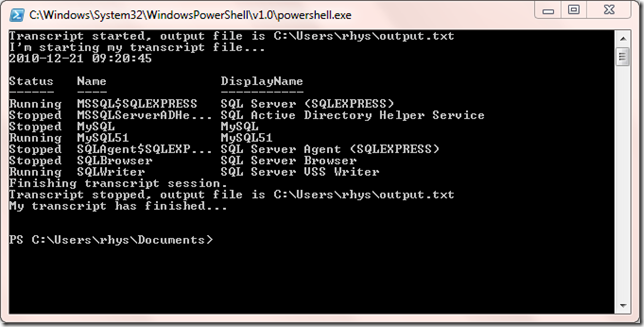
Additionally a text file, called output.txt, will be generated in your user profile directory (C:\Users\Rhys on my laptop).
**********************
Windows PowerShell Transcript Start
Start time: 20101221212045
Username  : rhys-VAIO\rhys
Machine	  : RHYS-VAIO (Microsoft Windows NT 6.1.7600.0)
**********************
Transcript started, output file is C:\Users\rhys\output.txt
I'm starting my transcript file...
2010-12-21 09:20:45
-
Guest Post on Scripting Guys
I’ve written a post about Documenting Databases with Powershell that’s featured today on the Microsoft Scripting Guys blog. Head on over and check it out!
-
Add column headers to a MySQL Outfile
Unfortunately the MySQL SELECT INTO OUTFILE command doesn’t support an option to output the headers of the result set you are exporting. A feature request has been open for over 2 years to sort this with no apparent activity.
-
Performance benchmarking with Powershell
I’ve been working on a performance benchmarking project recently to gauge the effect of new releases to our systems. Powershell happens to be very useful gathering various system statistics using the Get-Counter cmdlet.
-
Are your databases Trustworthy?
Recently I needed to check which of our databases, on our many SQL Servers, had the TRUSTWORTHY property set to true. This property, when set to false, can reduce certain threats from malicious assemblies or modules. Obviously this should only be enabled where it needs to be. Here’s a quick Powershell script that will enable you to check all your servers quickly.
[System.Reflection.Assembly]::LoadWithPartialName(“Microsoft.SqlServer.Smo”) Out-Null; -
Schedule a Windows server reboot
Just a quick one today as I’m always forgetting how to do this! I occasionally have to schedule server reboots to happen in the middle of the night. This is easily achieved by using the AT command in a command prompt window. The following example will schedule a server reboot for 3AM as a one-off job.
-
Why didn’t I know this SSMS Shortcut?
I was in two minds about whether to blog about this as I’m sure many people know this already! What the hell! I’m not embarrassed to admit I don’t know everything.
-
Beware of the BIT!
I’ve been spending the past week or so changing a colleagues scripts into SSRS reports so we can automate things a bit better. During some QA checks I noticed that I was coming out with higher counts on one section of the report.
-
Send email with Powershell
There’s two methods I often use for sending email in my Powershell scripts. The first uses the Send-MailMessage cmdlet and the second resorts to using the .Net Framework. Why do I use two methods? Well….
-
Tweet-SQL: Storing searches in a table
A Tweet-SQL user emailed me recently about how to store results from the tweet_src_search procedure in a table. Twitter returns an atom feed for search requests so you have to handle this slightly differently compared to other Tweet-SQL procedures.
-
Powershell… Making it difficult for yourself!
Today I was reading the post Powershell is Really Easy… If you know what you’re doing and it really struck a chord with me.
-
Gathering SQL Server Data Cache Information: Part 2
In a previous post I showed how you can collect information on what is held in the data cache. The data collected here was just a simple summary of how much space each database was consuming. While useful we will need more detailed information on what is inside the cache to get a proper handle on things.
-
Gathering SQL Server Data Cache Information
I’m currently building a CMDB at work and I wanted to include a bit of performance data in the information collected. The data cache is probably the biggest consumer of memory within SQL Server so It makes sense to collect this for future analysis. As a start I’m gathering the amount of space each database consumes in the data cache. I’ve created the below proc from a query in the excellent Pro SQL Server 2008 Internals & Troubleshooting.
-
Using sp_rename with schemas
I’ve noticed people before struggling using sp_rename with tables that aren’t in the default schema. Many people don’t use schemas, so there’s often confusion, when they finally do come across the need to rename a table belonging to another schema.
-
Deleting sequential duplicates with TSQL
I was recently given a du-duping task which was much more difficult than I anticipated and taxed my SQL brain to its limits. I thought of using a CTE to do this but all of the examples I could find for deleting records with a CTE wouldn’t have worked in my situation.
-
Parse MySQL Slow Logs with mysqlsla
Here’s a bash script that you can use to parse multiple MySQL Slow Query Log files, in one sweep, into something much more understandable. The script uses the handy utility mysqlsla so make sure this is in your path.
-
Kill all processes by name with Powershell
A reader commented on a previous post pointing out a deficiency in one of the scripts used to kill processes on remote computers. If more than one instance of the specified process was running on the target computer the script would buckle. This is pretty easy to rectify. The below script will kill all process instances on the target machine.
-
Tweet-SQL Version 3 released
Tweet-SQL version 3 has been released! Here’s a quick summary of the new features.
-
Comparing accented strings with TSQL
Today a colleague was running into some difficulties matching football team names containing accented characters. For example Olympique Alès and Olympique Ales were not matching when he wanted them to. The issue here is all to do with collations. We can use the Latin1_General_CI_AI collation in our queries to force the comparison to ignore accents (AI stands for Accent Insensitive).
-
Creating a sqlserverpedia list with Tweet-SQL
Many moons ago I posted an article illustrating how to befriend twitter users on the sqlserverpedia list with Tweet-SQL. Since Twitter have added various list methods to their API I thought it would be fun to rehash this post to create a list with Tweet-SQL.
-
Can't reopen table: 't1'
I’m quite often jumping between MySQL and SQL Server so remembering the quirks and limitations of each system can be difficult. With MySQL, if you attempt to reference a temporary table more than once in the same query, you will encounter the following error;
-
Rename MySQL Stored Procedures
I’ve previously blogged about the limitations of MySQL Alter Procedure Syntax and I came across a thread on the MySQL forums with a possible solution. I thought it might be handy to wrap this up into a stored procedure akin to SQL Server’s sp_rename.
-
Purge MySQL Binary Logs
From time-to-time you may need to manually purge binary logs on your MySQL slaves to free up a bit of disk space. We can achieve this by using the PURGE BINARY LOGS command from the MySQL command line client. MySQL advises the following procedure when purging these logs
-
For RANGE partitions each partition must be defined
If you encounter the following error when trying to create a partitioned table in MySQL
-
Configuring oAuth for Tweet-SQL
Twitter are soon requiring that all applications accessing their API use oAuth instead of basic authentication. This means you don’t have to provide your password to third parties when using their apps. I’ve been busy adding this to the upcoming version of Tweet-SQL and here’s a quick guide to setting up oAuth.
-
Error dropping database (can't rmdir './database', errno: 39)
Just a very quick post today! If you encounter this error when attempting to drop a MySQL database;
-
Unsigned Integer Arithmetic in SQL
Not the sexiest blog title in the world but I thought I’d knock up a little post on the behaviour of MySQL and SQL Server with integer subtraction. How would you expect a database system to behave with positive and negative data types? Microsoft SQL Server doesn’t really have unsigned data types. All integer types can be positive and negative with the exception of TINYINT. MySQL implements the concept of signedness so we can specify that TINYINT ranges from –128 to 127 or 0 to 255.
-
MySQL ALTER PROCEDURE Syntax
I usually use SQLYog to write any stored procedures for MySQL. Whenever you alter a procedure the editor essentially generates SQL to drop and then recreate it.
-
Cross database foreign keys?
Colleague: “Can you have foreign keys referencing other databases?”
-
SSMS SQLCMD Mode: a half done job?
I’ve always been aware of SQLCMD mode in SQL Server Management Studio but until a few days ago I never considered using it. So what is SQLCMD?
-
MySQL client ran out of memory
I’ve been building utilities with PHP and MySQL command-line tools to clone databases. I ran into an issue when exporting data from multi-gigabyte tables using the mysql client program.
-
Check disk space with Bash
Now I’m working mainly with Linux and MySQL I’ve had to learn how to accomplish basic tasks in entirely new ways. As a DBA I like to keep an eye on disk space. I wanted something like my Check disk space with Powershell script, but this only works with Windows, so naturally I turned to Bash. Here’s a very basic solution that will allow you to check the disk space on multiple Linux servers quickly.
-
Running multiple instances of MySQL
It’s reasonably easy to run multiple instances of MySQL with the mysqld_multi bash script. This can be really useful in development environments where you need to give several developers their own instance. To install multiple Microsoft SQL Server instances we have to get the install DVD and go through a laborious series of wizards. MySQL makes this easy with a few configuration files changes. In this example I’m going to outline how to configure 2 instances of MySQL by cloning an existing single instance.
Login to your existing mysql instance and run the below statement to create a user. -
Unknown table engine 'InnoDB'
I ran across this error today whilst upgrading to an instance of MySQL 5.4.
-
Scripting out database objects with PHP
I’ve recently needed to script out the create sql for various MySQL database objects. No Powershell or SMO to help with this so I’ve quickly rolled a PHP script to get this done.
-
Using Bash with MySQL
Now I’m back working with MySQL on Linux I’m starting to learn Bash scripting to automate various tasks. Here’s a very simple script demonstrating how to interact with MySQL from Bash.
-
SSIS: Loading files into MySQL
Getting data out of MySQL with SSIS is a snap. Putting data into MySQL has been a different matter. I’ve always done this in the past with a hodgepodge of ODBC, Linked Servers, OPENQUERY and the Script Task. All of these work well but they’re just not as convenient as loading files with the OLED Destination.
-
Searching database objects with Powershell
Sometimes it’s useful to get a quick overview of what objects are referencing a particular table, view or function. This may arise when we think we may need to drop an object but want to double-check if anything in the database is still referencing it. Here’s a quick solution in the form of a Powershell script. To get started you just need to modify the values for a few variables before executing the script.
[System.Reflection.Assembly]::LoadWithPartialName(“Microsoft.SqlServer.SMO”) out-null -
SSIS Execute Process Task not registered for use on this Computer
Whilst doing some maintenance on an SSIS package I encountered the below error when attempting to edit an Execute Process Task.
-
Check the time on multiple servers
After the recent change in our clocks due to BST I noticed that one of our servers was a hour slow. I wanted to check the rest since we run a lot of time dependant processes. Now we have Powershell any thought of manually checking each one is madness. Here’s a quick script I knocked up to check the time on multiple servers. Just create a text file called servers.txt with each server name on a new line. Place this onto your desktop and you’re ready to go.
-
String or binary data would be truncated.
This error message really irritates me.
-
SQL Server Audit with Powershell Excel Automation
Here’s neat little Powershell script you can use to audit your SQL Server databases. The script is dependant on the SQL Browser service, to discover instances, so you will need to make sure this is running. This will allow you to audit all SQL Server instances on the localhost with details of your databases and associated information. I use SMO here so it should be pretty easy to customise for your own purposes. Just run the script and a nicely formatted Excel report of your databases will be produced. Enjoy!
[System.Reflection.Assembly]::LoadWithPartialName(“Microsoft.SqlServer.Smo”) Out-Null; -
MySQL is my father!
Things have been rather quiet on this blog lately as I’ve just been finalizing the details for my new role as a MySQL DBA \ Developer. This may seem a little odd, considering TSQL is mentioned in my blog url, but I frequently blog about MySQL and have worked with it previously in a professional environment. I’ll still be working with SQL Server but MySQL will be the primary database platform I’ll be working with.
-
Run a Stored Procedure when SQL Server starts
Recently I needed to setup a SQL Server box so it had access to a mapped drive to support a legacy application. I created the below stored procedure, which utilises the subst command. to get this done.
-
Get TFL Tube data with Powershell
The London Datastore has loads of datasets available that we can use for free. One of the datasets available is a list of TFL Station Locations. The station location feed is a geo-coded KML feed of most of London Underground, DLR and London Overground stations. Here’s Powershell script that will extract this data from a url and write it to a pipe-delimited file ready for import into the database of your choice.
-
Free Database Sync Tools
I’m a big fan of Redgate SQL Compare but it’s been good to see the arrival of a few free alternatives. Life previous to these tools really does seem like the stone age now eliminating those “oh $h**, I forgot about that!” moments. I’d always go for Redgate every time but, if you don’t have it in your budget, these tools may be worth checking out.
-
Console input with Powershell
I’m looking at building some Powershell scripts that can accept user input to perform different tasks with a wizard style interface. As it happens this is fairly easily achieved with the Read-Host cmdlet. Here’s a quick script showing how such a powershell script may look.
-
SSIS: Make your output files dynamic part 2
A few weeks ago I blogged about my attempts to make dynamic output files in ssis. The idea here was to make an ssis package, producing a text file output, that would cope with complete changes to the data source. If you wanted to add a column all you needed to do was change the stored procedure definition that the data was derived from. While this was functional it did have a couple of issues.
-
Breaking my Non-Equi Join cherry
There’s few SQL techniques you seem to keep in the cupboard gathering dust. I don’t think I’ve ever needed to use RIGHT JOIN outside of the classroom. I can recall using FULL OUTER JOIN, just once, to show an employer how not-in-sync their “integrated system” was. Today I broke my professional Non-Equi JOIN cherry!
-
The 'DataSourceView' with 'ID' = 'Adventure Works DW2008' doesn't exist in the collection.
One of my goals for this year has been to learn more about SQL Server Analysis Services. So I’ve bought myself a (very fat) book on the subject and have started to work my way through it. A few days ago I built the first example cube in Chapter two. Coming back to it this evening, I opened the project in BIDS, and was presented with the following error in the cube designer.
-
MySQL clone of sp_spaceused
Following on from yesterdays blog post, a MySQL clone of sp_MsForEachTable, here’s an attempt at a clone of sp_spaceused. There’s a few issues to be aware of involving the storage engine in use. For example the row count is accurate for MyISAM while with InnoDb it seems to be just an estimate. This estimate can vary from execution-to-execution. The procedure derives its information from INFORMATION_SCHEMA.TABLES. To get started create the below procedure in the database you wish to use it in.
-
MySQL clone of sp_msforeachtable
Many SQL Server DBAs and Developers get a lot of use out of the undocumented sp_MsForEachTable system stored procedure. Here’s an attempt at creating a functional version for MySQL. The procedure makes use of prepared statements, which do have some limitations, so some uses may not translate across. This is far from production ready so use with lots of caution.
-
Managing Index Fragmentation with Powershell
Here’s a Powershell script that can be used to manage index fragmentation in SQL Server databases. The strategy I’ve used in the script is based on a recommendation from Pinal Dave (blog twitter) in his article Difference Between Index Rebuild and Index Reorganize Explained with T-SQL Script. Just set the $sqlserver and $database variables to something appropriate for your environment. Enjoy! [System.Reflection.Assembly]::LoadWithPartialName(‘Microsoft.SqlServer.SMO’) Out-Null; -
SSIS: Make your output files dynamic
I like making my SSIS packages as dynamic as possible. Once that package has been deployed into production I want to avoid opening it up in BIDS if possible. I’ve blogged previously about using Stored Procedures in Execute SQL Tasks but this only gives us flexibility in terms of the where clause. We have no flexibility in terms of the columns unless we open the package up in BIDS.
-
Powershell Random sort
Here’s a Powershell snippet that randomly sorts the lines in a file. The snippet below reads a text file, called file.txt , located in your user profile directory. The data in the file will be written back with the lines in a different order.
-
Postgres Linked Server How To
Just a quick post showing how to add a Postgres database server as a Linked Server in Microsoft SQL Server.
-
PsFetch
I really used to like apt-get when I used to run Linux as my home os a few years ago. Once you got the hang of it installing and managing software was easy. I’m obviously pleased to see PsFetch in development. This tool is the Windows Powershell take on apt-get which will allow you to get your hand on cmdlets, scripts, and by the looks of it, tools from codeplex. They’re currently building up a repository with lots of cool scripts.
-
PowershellPack STA Error
I’m really into Powershell so I like trying out all the available tools. Somehow I’ve missed the release of the PowershellShellPack which has ten modules offering all kinds of additional functionality including file handling, operating system information, GUI and code generation. I followed the Channel 9 video and ran into a problem on the first example given.
-
Extract Stored Procedure Comments with TSQL
I’ve blogged before about documenting databases. I’m very much a fan of extracting documentation from systems themselves so it’s as up-to-date as it can be. That’s probably why I’m such a big fan of Powershell a tool that excels at this task. This week I was thinking about how to get at the comments often placed at the top of stored procedure definitions. I’m referring to the little block of comments that Microsoft are encouraging us to fill out when we create a new store procedure.
-
British Government launches free data site
Just a quick post about the British Governments launch of data.gov.uk offering free access to a large number of datasets. It’s good to see this data, that we as taxpayers have funded, available for free use. Hats off to The Guardian’s long running free our data campaign.
-
Execute SQ... Procedure Task
I’ve been having a bit of a debate with some colleagues today about the Execute
SQLProcedure Task in SSIS. Is it ok to enter raw SQL queries into this task or should everything be enclosed within a Stored Procedure? My view… -
View or function 'dbo.Viewname' has more column names specified than columns defined
If you ever encounter this SQL Server error when selecting from a view then somebody has probably dropped columns from the base table. Here’s a quick run through of the problem.
-
Using .Net libraries in Powershell
One of the great things about Powershell is its ability to take advantage of the .Net platform. If Powershell can’t do it you bet there’s a .Net library that can. Not only is this great for extending your scripts but I also like to use Powershell to test some of my classes. Rather than fire up RAM hungry Visual Studio I can just script out a few tests in Powershell.
[Reflection.Assembly]::LoadFile($dll -replace(“.cs”, “.dll”)); [Reflection.Assembly]::LoadFile(“C:\Users\Rhys\Documents\powershell\Zipper.dll”) | Out-Null;
-
Powershell Tools
I love Powershell. You can do some really cool things with just a few lines of code that you would struggle to do any other way. There’s quite a community around Powershelll providing a fair number of tools. Here’s a round-up of a few I have used.
-
Views or functions cannot reference themselves directly or indirectly
Today I received the following SQL Server error which I had never encountered before.
-
Goals for 2010
I’m a little late blogging about this but I have these goals in my mind for this year.
-
Primary Keys do not always have to be 'Id'!
We’ve all more than likely spotted tables in databases with no primary keys. But does a primary key always have to be defined something like…
-
Discover SQL Servers with Powershell via the registry
Chuck Boyce Jr (blog twitter) recently commented on a limitation of the script from my post Discover SQL Servers with Powershell. The script does require that the SQLBrowser service is running for discovery to occur which may be a major issue for some. Here’s an alternative method that does not have this limitation. All SQL Server instances should have their name registered in the following registry key HKLM\Software\Microsoft\Microsoft SQL Server\InstalledInstances which we can access remotely with Powershell. -
Powershell Script Task for SSIS
SSIS and Powershell are two of my current loves in technology, so of course, I was excited to see someone has made a Powershell Script Task. I’ve been meaning to try this out for months. Unfortunately it looks like the project isn’t currently active, but I thought I’d still give it a whirl, and post it here hoping to save others a little time on setup. First you’ll need to download the source code as there’s no installation package. Then you’ll need to compile the project to produce the dll. I used Visual Studio 2008 but I guess Visual C# Express Edition will do it. Double click the file called Defiant.SqlServer.PowerShellScriptTask.csproj from the source code you downloaded. This will open the project in your IDE. Build the project and a bin\debug directory containing a dll will be created in the project folder.
 We are only interested in the file called Defiant.SqServer.PowerShellScriptTask.dll. We will need to register this file in the GAC and copy it to a place where SSIS can find it. Save the commands below, with appropriate modifications, to a batch file.
 -
Automating Internet Explorer with Powershell
Ashamed of the amount of time you spend on Twitter? Want to know how to automate Internet Explorer with Powershell? Once again Powershell comes to the rescue! Here’s an illustration I came up with to post tweets on your twitter account from a text file.
-
Automated Date Range Testing of SSIS Packages
I’m currently building a lot of SSIS packages that are primarily date driven. Many of these involve periods of 100 days, to several years, so I wanted to automate the testing of these packages. I’d previously automated the testing of stored procedures over date ranges but wanted a solution for testing the system as a whole. The solution I came up with involves the use of Powershell. Essentially this script increments the date, by one day, before executing a package with dtexec.
-
SSIS: Don't run the process on a bank Holiday
Sadly, as people don’t make sense, we have to make compromises in our systems and processes. I recently had a requirement, in an SSIS package, to be able to identify which days were Bank Holidays and take a different course of action, e.g. not run the main process. Here’s an illustration of the approach I took using a simple lookup table, containing holiday dates, and SSIS precedence constraints.
-
Testing datetime dependent Stored Procedures
This week I was tasked with testing a stored procedure that was meant to output data on certain days. This was over a 120 day period, so I wanted to find some automated way of doing this, rather than changing the server date manually for each execution. The method I came up with involves the use of xp_cmdshell to execute the date command. Here’s an illustration of what I came up with.
-
TSQL: Query Pipe-Delimited text files with OPENROWSET
Sometimes, when working with extracts of data, it can be a pain to have to load these files into a database in order to work with them. It’s easy to use OPENROWSET to save yourself a little time. Here’s a basic example;
-
Get database size With T-SQL and MySQL
I’ve recently been busy documentation various systems at work and came up with these queries to get a list of databases and their sizes for each SQL Server. These queries will show the server name, database names, and their sizes in KB, MB and GB.
-
Converting CSV FileS to XML with Powershell
Powershell is a pretty cool tool for many things including working with data. It’s just such a great time saver if you have to deal with multiple files or need to change them into different formats. Here’s how easy it is to turn a csv file into well-formed xml.
-
SSIS: Writing to the Windows Event Log
Here’s a quick VB.Net snippet that allows you to write messages to the Windows Event Log from your packages. Nothing to configure here, just change the log message to something appropriate. Obviously, in order to work, the package would have to be run under an account that has permission to write to the event log. Copy the below code into a Script Task, change the message, and you’re ready to go.
-
SSIS: Archiving files with VB.Net
When creating SSIS packages it’s a common requirement to be able to archive the processed files. Here’s VB.Net code snippet, with a quick walkthrough, that does exactly that.
-
Trimming Whitespace with Powershell
A few days ago I was working with a client that was providing an export of data from Oracle. The file being produced was choking my SSIS package due to various formatting issues. After working with the client and getting a file that looked good to the naked eye I discovered that a large amount of whitespace on the end of each line was making things break at my end.
-
Ordering by Column Value in SQL Server & MySQL
Today I needed to order some data by specific column value and I recalled the really handy FIELD function in MySQL. Here’s a demo of this feature in MySQL
-
Computed Columns in SQL Server
So exactly what is a computed column? MSDN has this to say
-
Splitting csv files with Powershell
I’ve blogged before about the usefulness of Powershell for data tasks. A few weeks ago I had a requirement at work for merging csv files and recently I needed to split a single csv file into several files.
-
Using Progress Bars within the Powershell Console
Progress bars can be a nice visual indicator as to how a far a task is into its workload. Windows Powershell provides us with the ability to create these within the console fairly easily.
-
Discover SQL Servers with Powershell
With Powershell and SMO you can easily discover SQL Server instances running on your network in just a few lines of code.
[System.Reflection.Assembly]::LoadWithPartialName(“Microsoft.SqlServer.Smo”) Out-Null; -
Merging CSV Files with Powershell
Powershell is really useful for documenting and managing your servers but it’s also a pretty good tool for working with data. I’ve been using it to merge csv files, with an identical structure, into a single file. Now this is pretty easy, if rather tedious, to do using SQL Server Import / Export functionality or with SSIS. Powershell makes this a snap!
-
System Documentation: My Method
Jorge Segarra (Blog Twitter) posed the question System Documentation: What’s your method?. In my experience documentation has either been nonexistent, out of date or even worse, plain wrong. These situations often get blamed on lack of time dedicated to documentation tasks. -
Practical VBA Examples for the DBA: Part 2
In a previous post I demonstrated how a little bit of VBA code can be used to build some basic user interfaces to deliver data. Continuing on with this the examples here will show how to build some basic user interfaces; Combo box (or drop down list) and a Multi-Select List. Like the previous examples these use the AdventureWorks sample database as a data source.
-
Writing filenames to a text file with Powershell
I had a task to do today that required me to get all the names in a directory of files into a database. This seemed like a ideal job for Powershell and I’ve posted the (very simple) script here.
-
Comparing T-SQL Cross Apply with MySQL GROUP_CONCAT
Steve Novoselac posted a good article about using CROSS APPLY with TSQL. This is a really useful technique for transforming data into grouped lists. It made me think of a similar feature in MySQL, a function, called GROUP_CONCAT. Here’s a demonstration of CROSS APPLY with TSQL and GROUP_CONCAT in MySQL to achieve the same thing. I’m going to use the example of continents and their member countries.
-
Practical VBA Examples for the DBA: Part 1
I’ve never been a huge fan of VBA but it can be very useful for quickly providing interfaces to your databases. The examples here use Macros in Excel 2007 to execute stored procedures on SQL Server and provide data back to the user. These examples use the AdventureWorks sample database.
-
SQL Server Fulltext Search Primer
Previously I wrote an article about fulltext searching with MySQL and thought I’d redo the same article but for SQL Server users. Depending of which side of the database wars you’re on SQL Server has either a more advanced or complicated way of doing things. Here’s a very brief introduction to the fulltext search features in SQL Server.
-
More Powershell Nuggets
In a previous post I provided a few small Powershell code blocks suitable for beginners to digest. Here are a few more that anyone starting with Powershell might like to experiment with.
-
MySQL Fulltext search primer
MySQL fulltext indexing can be a useful addition to a website requiring some better searching capabilities. Many blogging platforms based on MySQL, like wordpress, will be using fulltext indexes for their search features. While not as powerful as something like Lucene it certainly is a lot simpler to setup. Fulltext indexes can only be created on MyISAM tables so that means no transactions, foreign keys or row-locking. You can check out further restrictions in the documentation.
-
Check for failed SQL Agent Jobs with Powershell
Checking for failed SQL Agent jobs should be part of any DBA workplan. Here’s another Powershell script that makes checking the last run outcome easy on multiple SQL Servers. To run this script you need to create a list of your SQL Servers in a text file called sqlservers.txt. Place this text file in your user profile directory, C:\Users\Rhys on my laptop.
[System.Reflection.Assembly]::LoadWithPartialName(“Microsoft.SqlServer.Smo”) Out-Null; -
Ping all Domain Computers with Powershell
Here’s a Powershell script that can ping all computers that are in your domain. All computers registered in AD will be pinged, including ones long dead, so this script may be useful for figuring out what is still active on your network.
-
Documenting Databases
Asking for database documentation in many tech shops will result in blank stares. Other places do see the value of but it forever remains on the to-do list. There are a few commercial products available hoping to help with this;
-
Check disk space with Powershell
Need to monitor disk space on multiple servers? Then make the job easy with this Powershell script. To configure this script just create a file called serverlist.txt in your user profile folder, C:\Users\Rhys on my laptop. The $percentWarning variable allows you to control at what percentage level you will be warned about free disk space. If disk space is less than this then the text will be coloured red to draw your attention to it. The script will also output a datetime stamped csv file in your user folder containing similar data.
-
Using Powershell to check if Triggers are enabled
I’ve been thinking about how Powershell can be used by the DBA as an extra tool in their armoury. An article that caught my eye was The Daily DBA Checklist, specifically an item about Triggers;
[System.Reflection.Assembly]::LoadWithPartialName(“Microsoft.SqlServer.Smo”) Out-Null; -
Cannot resolve the collation conflict
I do a fair bit of work with Linked Servers and cross-database queries and sometimes come across the following error when joining between databases with different collations;
-
Executing MySQL Stored Procedures from SQL Server
If you ever need to call a MySQL procedure from SQL Server it’s fairly simple thanks to ODBC and Linked Servers. This will allow you to reuse any logic already invested in MySQL Stored Procedures saving you from rewriting them. Here’s a simple example on how you can do it;
-
Using TwitterCounter with Tweet-SQL
TwitterCounter is a service that provides Twitter user statistics. In their own words; “The TwitterCounter API allows you to retrieve everything TwitterCounter knows about a certain Twitter username.” TwitterCounter basically provides statistics on followers and predictions on growth. The next version of Tweet-SQL will include a procedure to work with this data. Here’s how you use it;
-
Easy Database Auditing with Powershell
I previously posted an article explaining how to audit your SQL Servers with Powershell. In this article I wrote SMO properties to csv files. As there are a large number of properties you may be unsure of which ones you may need in the future. Luckily Powershell doesn’t make us fetch every single property manually; we can pipe the contents of an object to the Export-Csv cmdlet.
[System.Reflection.Assembly]::LoadWithPartialName(“Microsoft.SqlServer.Smo”) out-null; -
Updating & deleting records with no match in another table
Several weeks ago I posted an article about Non-SELECT Joins in T-SQL and MySQL. The examples only covered INNER JOINS but sometimes we need to update, or delete, records in a table that do not have a corresponding record in another table. I’m going to illustrate the various methods for doing this in SQL Server and MySQL.
-
Auditing your SQL Servers with Powershell
Being able to know the setup and configuration of your SQL Servers is important for many IT Professionals. Powershell, combined with SMO, makes this task easy. SMO exposes a lot of properties allowing you to easily retrieve things like Processor & RAM Information, Service Pack Level, Operating System information, Collation Settings, number of Databases, and much more. Be sure to explore SMO for your specific needs. PowerGUI, from Quest Software, has a nice Intellisense feature that makes exploring object properties easy.
[System.Reflection.Assembly]::LoadWithPartialName(“Microsoft.SqlServer.Smo”) out-null; -
Auditing Network Adapters with Powershell
Those boring network auditing tasks you have to do are now going to be a breeze with Powershell. With technologies like WMI accessible from Powershell there is virtually no limit to what you can do. I’m going to publish a series of articles showing how Powershell can be used to document your server and network. First here is a Powershell script that can be used to document networking settings on a host.
-
Altering Database Objects with Powershell
Sometimes it’s necessary to rename tables and databases and this can create a lot of work if it’s referenced by other database objects. I recently came across this situation at work. Developers had introduced a second database into the system and each referenced the other. This didn’t sit well with our testing environment that had multiple copies of customer databases. Here’s a Powershell Script I wrote to make the process easy.
[System.Reflection.Assembly]::LoadWithPartialName(“Microsoft.SqlServer.SMO”) out-null -
Monitoring & starting Services with Powershell
Are you part of the DBA crowd that hasn’t yet checked out Powershell? I’m really enthusiastic about its potential for server administration. Script out all those mundane jobs you have to do and make life easy. Here’s a Powershell script that makes checking if services are running, and optionally starting them, on multiple servers really easy. First, be sure to check services.msc for your SQL Server service names. They may be different from the default, i.e. if you’re running Named Instances.
-
Shrinking Tweets with Tweet-SQL
To get your point across on Twitter you sometimes have to try and shorten your tweets. This can be a pain for anyone over 30 who doesn’t know txtspk. Thankfully some clever chap has come to the rescue with TweetShrink and I’ve integrated it into Tweet-SQL. Here’s how you use it;
-
Temporary & Custom Database Object Naming
Over the years I’ve experienced various problems with temporary and custom database objects (as in objects created specifically for certain client systems). Development and deployment teams are often distinct and this can create issues. These issues have included;
-
Calculating datetime periods with T-SQL & MySQL
If you ever have to do any ETL type work then at some point you’re probably going to have to work with data on a daily batch basis. Many people make use of the DATEPART function in T-SQL, or the DATE function in MySQL for this type of work. If you do something like…
-
Know who your friends are with Tweet-SQL
Tweet-SQL version 2 supports the new Twitter social graph API methods. These are two very simple methods to get all of your followers, or friends, Twitter user ids. There are four procedures in Tweet-SQL that support these methods.
-
Using the Twitter Search API with Tweet-SQL
Using the new version of Tweet-SQL you can consume data from the Twitter Search API. The data in Twitter Search is constantly updated with new tweets so anything you grab out of the API is near real-time. To perform a query with Tweet-SQL run the following T-SQL;
-
Using TinyURL with Tweet-SQL
As every post to Twitter is limited to 140 characters it’s important we are able to squeeze as much as we can out of it. To help users of Tweet-SQL with this I’ve integrated TinyURL into version 2 of the product. Here’s how you use it;
-
Powershell Nuggets
Here are a few Powershell nuggets for beginners to digest.
-
Non-SELECT Joins in T-SQL and MySQL
I read a great article, by Pinal Dave, on SQL Joins this week. I thought I’d add something for Non-SELECT joins as I’ve noticed a few developers missing these in their armoury. It doesn’t help that there is no standard so every database implements this differently. This is one of the few occasions where you will hear me rant about MySQL over SQL Server. The way you express Non-SELECT joins in MySQL just seems far more natural to me.
-
SSIS: Not just for BI
SSIS can offer you more than just simple ETL. Even though I dislike VB.Net its inclusion in SSIS allows you to do virtually anything you can think of. I’ve used SSIS for testing other bits of software, categorising keyword and search terms, and monitoring Windows Servers with WMI. SSIS comes with a lot in the box but with third-party components you can get even more creative.
-
My Favourite SQL Tools
-
TOP WITH TIES
Not many people seem to be aware of the WITH TIES clause introduced in SQL Server 2005+. This simple feature is worth adding to your query armoury. In the words of BOL WITH TIES …
-
London Postcode District Data
The requirement to work with postcodes, and specifically London postcode districts, has followed me around during my professional life. Below is a TSQL script to create a table for the postal districts in London. Enjoy!
-
Hack Attack
Today I spotted a suspicious looking file called login.txt on the c drive of a customers web server. Being the
noseycurious type I opened the file and this is what it contained… -
Tweet-SQL Version 2 Sneak Peek
Tweet-SQL is a Twitter Client for Microsoft SQL Server 2005 and above allowing you to interact with the Twitter API with standard T-SQL. The forthcoming version 2 of Tweet-SQL contains a host of new features and improvements. Here’s a sneak peek at what is coming in Tweet-SQL V2;
-
Ping-SQL Sneak Peek
Ping-SQL allows you to play with the Ping.fm API with standard T-SQL in Microsoft SQL Server 2005 and above. Ping-SQL includes procedures to programmatically adjust configuration, replicate data to local tables and, of course, interact directly with the ping.fm API. Here’s a quick summary of the procedures currently in the suite…
-
Software Deployment with PsExec
This isn’t related to SQL in any way but I’d thought I’d present it here as it has proven to be an excellent solution to a problem I was facing at work.
-
Insert data into MySQL with T-SQL
One of the killer features of SQL Server is the ability to retrieve data from almost any source. Want to query MySQL, Access databases, text files, Active Directory, Exchange mailboxes or XML documents? All this is possible with SQL Server and is relatively simple to do so and all without resorting to SSIS. Getting data into SQL Server, from outside sources, is well documented but pushing it out into other DBMSs, like MySQL, is not. This example will demonstrate how you can use SQL Server to get data from an XML file into MYSQL with just a Linked Serverand a bit of TSQL.
-
Hello world!
Welcome to WordPress. This is your first post. Edit or delete it, then start blogging!


subscribe via RSS